NUVOTON 新唐 NuMaker-UNO-M4 開箱文

作者:順哥
email:palmbear@gmail.com

參考資料 1:NUVOTON 新唐 NuMaker-UNO-M4 產品頁,https://direct.nuvoton.com/tw/numaker-uno-m4?srsltid=AfmBOopFhCXT5ftx5FTkoTcIVZLXr0MX_9o07sI9xKODXf4wINY5kuBc
參考資料 2:Chat Everywhere,https://v2.chateverywhere.app/zh

一、簡介(引用參考資料 1)
新唐 NuMaker-UNO-M4 開發板是使用新唐 MCU 作為微控制器的一款 Arduino 相容硬體。它的功能可以透過 Arduino 相容的擴充板來擴展。使用者可以使用 Arduino 相容的 IDE 來開發他們的應用程式,並充分利用大量的公開範例。

NuMaker-UNO-M4 是一個特別的開發工具,用於新唐 Cortex®-M4 系列的使用者透過其可以開發並容易驗證該應用程式。其目的是提供一套開發及學習的平台,具有 ADC、PWM、I²C、SPI 等周邊功能,使用者可以設定不同功能的 NuMaker-UNO-M4 開發套件,也可根據使用者需求增加外設功能的開發套件,易於上手,提供開發所需的靈活性。

二、外觀
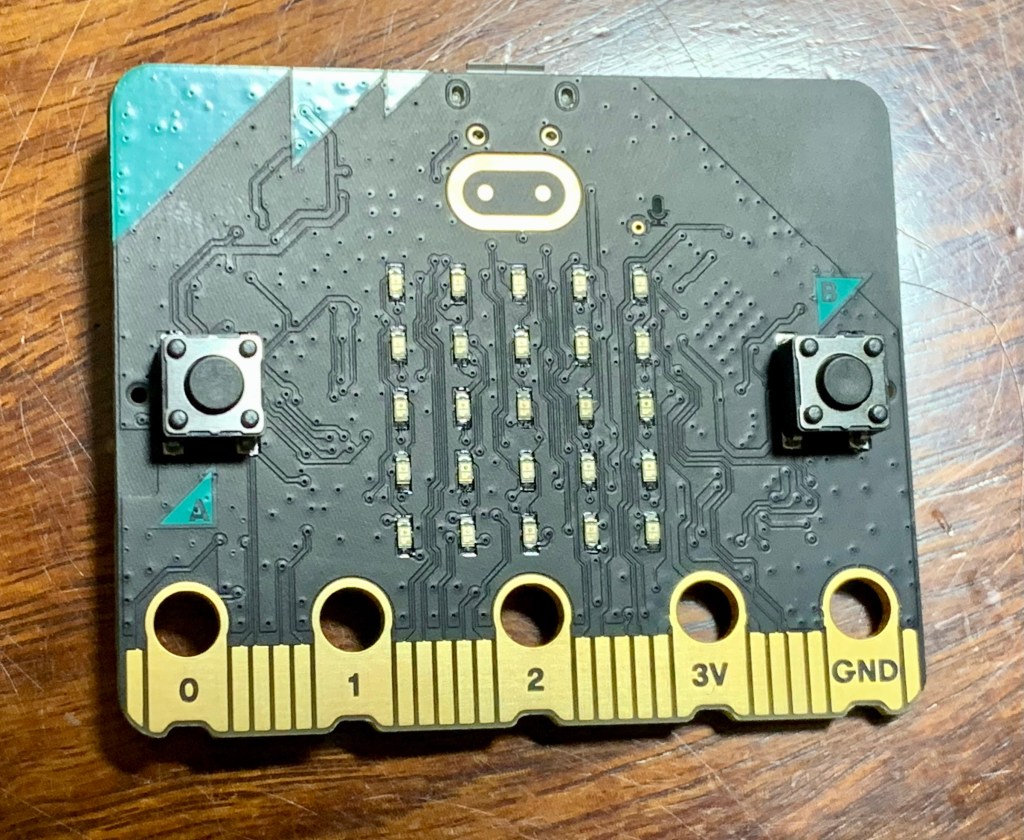
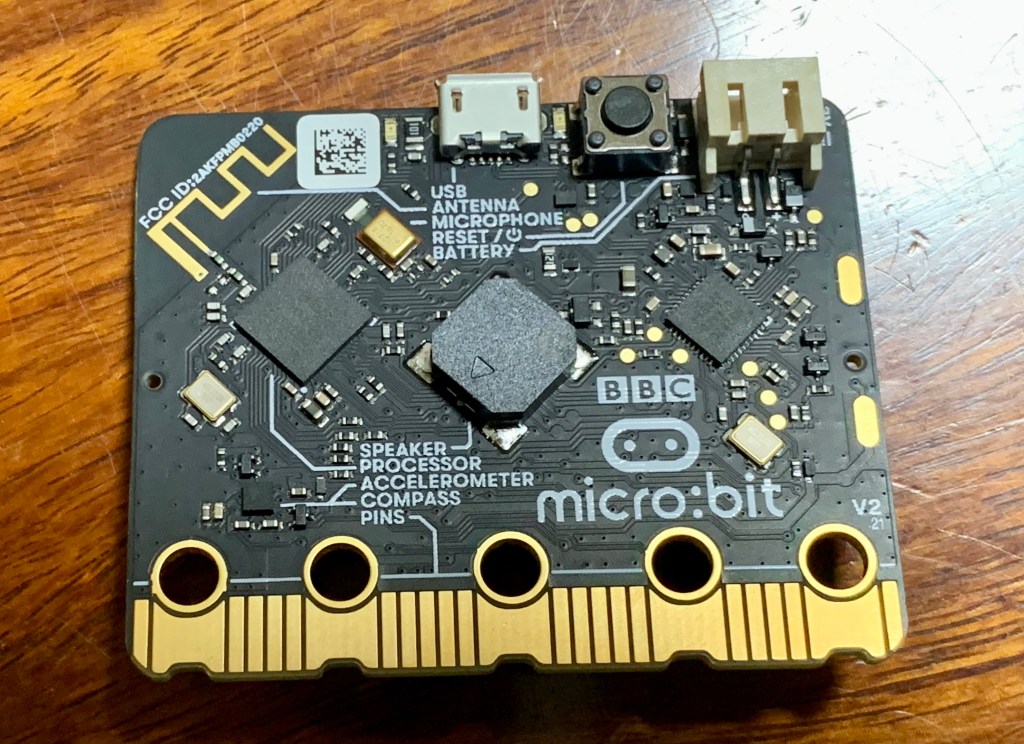
NUVOTON 新唐 NuMaker-UNO-M4 外觀
![IMG_3658](https://hackmd.io/_uploads/S11BnjYtel.jpg)
![IMG_3659](https://hackmd.io/_uploads/Hk1r3iFtxx.jpg)
![IMG_3660](https://hackmd.io/_uploads/HJyBniKKgl.jpg)

三、主要特點(引用參考資料 1)
特色:
* 學習/應用/調試:全系列開發工具
* 攜帶方便的開發調試工具包
* 豐富的微控制器周邊設備功能,如ADC、PWM、I²C、SPI、UART…
* 具有高可擴展性:連接電路板可以改變不同的應用模組
* 相容 Arduino UNO R4
* 支持對 USB 的虛擬串口
* 支援 Arduino 的 IDE
* 多元的供電方式
– USB VBUS
– 外部電源支援 5V,可以從其他電源提供給 DC 插座
* LEDs 狀態指示燈
– Power, I/O, UART (Tx, Rx) 和 SPI CLK 狀態…等燈號
* 提供 RESET 按鈕

NuMaker-UNO-M4開發板接頭名稱及定義如下:
![IMG_3661](https://hackmd.io/_uploads/r1JS2sFFxl.jpg)

![IMG_3662](https://hackmd.io/_uploads/S1kS3sKFge.png)

插上電後,有一個閃爍3顆LED的程式已預先燒入上去。

四、Arduino IDE 開發環境安裝

1. 至Arduino 官網下載 Arduino IDE 開發環境,執行所下載之安裝檔,並安裝 Arduino IDE。
2. 執行 Arduino IDE。選擇 File → Preferences
3. 並在 Additional Board Manager 的欄位中輸入下列網址: https://raw.githubusercontent.com/OpenNuvoton/NuMaker_UNO/master/package_nuvoton_index.json
![截圖 2025-08-24 15.59.33](https://hackmd.io/_uploads/SJA0jjKKel.png)

4. 利用左邊「開發板」按鈕,搜尋NuMaker UNO M4,並安裝「UnMaker M4」,目前最新版是「13.3.9」。

選擇 Tools → Board → Boards Manager ,
NuMaker M4 會出現在清單底部;點選 NuMaker M4 並按下 Install
![截圖 2025-08-24 16.00.05](https://hackmd.io/_uploads/HJRRoottex.png)
![截圖 2025-08-24 16.00.45](https://hackmd.io/_uploads/SJA0ioFKlg.png)
![截圖 2025-08-24 16.02.59](https://hackmd.io/_uploads/r1R0oitKxl.png)
5. 待軟體包下載安裝完畢,即可在 Tools → Board 選用 NuMaker-UNO-M4
![截圖 2025-08-24 16.03.35](https://hackmd.io/_uploads/HkRAiiKKex.png)
6. 選擇開發板NuMaker-UNO-M4,以及連接埠。
![截圖 2025-08-24 16.29.57](https://hackmd.io/_uploads/ByACsjtKgx.png)

或點選「工具」,再選擇開發板NuMaker-UNO-M4,以及連接埠
![截圖 2025-08-24 16.06.36](https://hackmd.io/_uploads/Bke0CojKYee.png)
![截圖 2025-08-24 16.07.27](https://hackmd.io/_uploads/HJCCsoKtel.png)
7. 開啟範例程式:Blink,並上傳
![截圖 2025-08-24 16.09.13](https://hackmd.io/_uploads/BJA0joKYxx.png)
8. 編譯完成上傳失敗,缺少「isptool」這個程式。
![截圖 2025-08-25 18.13.38](https://hackmd.io/_uploads/SyFDD2Ytll.png)
9. 「isptool」這個程式是一個Windows OS的bat檔,在macOS當然不能用。
![截圖 2025-08-24 16.22.36](https://hackmd.io/_uploads/BkARsiYKgl.png)
10. 經過一個下午,找ChatGPT幫忙,用Python做出了「Nuvoton ISP Tool」GUI程式,但是無法正常連接 NuMaker-UNO-M4。
![截圖 2025-08-24 18.42.41](https://hackmd.io/_uploads/S1CRjoKYeg.png)
11. 使用「UTM」Windows虛擬機,進行測試才順利上傳Blink程式。
![截圖 2025-08-25 17.00.10](https://hackmd.io/_uploads/SkH2jntKgg.png)
![截圖 2025-08-25 17.03.13](https://hackmd.io/_uploads/HJBho2KFxx.png)
12. Blink.py測試程式
點亮、熄滅內建LED,每0.2秒循環一次內建LED,Blink.py。
“`c++=
//Blink程式,閃爍內建「LED 3」每0.2秒閃爍一次
// the setup function runs once when you press reset or power the board
void setup() {
// initialize digital pin LED_BUILTIN as an output.
pinMode(LED_BUILTIN, OUTPUT);
}

// the loop function runs over and over again forever
void loop() {
digitalWrite(LED_BUILTIN, HIGH); // turn the LED on (HIGH is the voltage level)
delay(200); // wait for a second
digitalWrite(LED_BUILTIN, LOW); // turn the LED off by making the voltage LOW
delay(200); // wait for a second
}
“`
測試程式Blink.ino影片

五、結論
目前「NUVOTON 新唐 NuMaker-UNO-M4」在Arduino IDE開發環境,僅支援「Windows OS」,不支援「macOS」。

希望「新唐NUVOTON」早點支援 macOS。

在 macOS 上安裝 MariaDB 伺服器

作者:順哥
email:palmbear@gmail.com

參考資料 1:Installing MariaDB Server on macOS Using Homebrew
參考資料 2:Mac安裝MariaDB資料庫
參考資料 3:macOS 上安裝 Sequel Pro 資料庫管理介面

Table of Contents

[TOC]

前言

因為上宅老大的課程需要使用MariaDB資料庫,但是官網的下載頁面沒有提供下載,查詢google後,找到相關參考資料,將安裝流程記錄一下。
MariaDB官方Download網頁:Download MariaDB Server

安裝環境

  1. Macbook pro M1
  2. macOS 15.6

參考各「參考資料」及官網,實際的安裝程序如下:

步驟一:打開終端機

查詢MariaDB資料庫有哪些版本:brew search mariadb

步驟二:安裝MariaDB資料庫

安裝MariaDB資料庫:brew install mariadb

下完安裝命令後,brew 會先自行更新,然後才開始安裝 MariaDB。

截圖 2025-08-19 22.37.25

MariaDB安裝完成後,會自行執行brew cleanup mariadb
截圖 2025-08-19 22.49.27

接著自動執行brew cleanup,清除無用程式庫。
截圖 2025-08-19 22.54.47

步驟三:啟動 MariaDB

啟動MariaDB資料庫:brew services start mariadb

截圖 2025-08-19 22.57.00

步驟四:登入「MariaDB」

MariaDB 伺服器啟動後,您可以以您的使用者身分登入:mysql

或以 root 身分登入:sudo mysql -u root

出現下圖就是安裝完成。
截圖 2025-08-19 23.07.38

離開「MariaDB」:exit
截圖 2025-08-19 23.11.16

重新啟動MariaDB資料庫:brew services restart mariadb
截圖 2025-08-19 23.49.06

步驟五:變更 MariaDB root 密碼

  1. 打開 iTerm2 終端機
  2. 終端機執行指令 sudo mariadb-secure-installation,變更 root 密碼
截圖 2025-08-20 00.11.27
截圖 2025-08-20 00.12.50

步驟六:安裝資料庫管理介面(sequel pro)

因為sequel pro已經沒有繼續維護,無法使用brew install sequel-pro來安裝,搜尋到「參考資料 3」可以下載「sequel-pro-1.1.2.dmg」,直接打開後如下圖:
截圖 2025-08-19 23.36.33

將 Sequel Pro.app 拉到應用程式就可以了。
截圖 2025-08-19 23.37.10

打開 Sequel Pro.app 後如下圖:
截圖 2025-08-19 23.44.42

輸入資料如下:
截圖 2025-08-20 00.19.29

進入MariaDB資料庫後畫面如下:
截圖 2025-08-20 00.16.18

參考:macOS 上安裝 MySQL 與 Sequel Pro 資料庫管理介面

其他資源

  1. mariadb.rb on github
  2. MariaDB Server on macOS: Does it even make sense to try? (video)

如何在masOS安裝Google Gemini CLI

作者:順哥

email:palmbear@gmail.com

參考資料 1:Gemini CLI GitHub,https://github.com/google-gemini/gemini-cli

參考資料 2:【Gemini CLI 安裝/使用教學】Mac版|程式安裝+指令大補帖,https://www.youtube.com/watch?v=AO2tuyNFXkEGemini

參考資料 3:CLI 橫空出世 | 不只免費,軟體還開源 | 完整安裝 可呼叫Google Search,https://www.youtube.com/watch?v=ws1ee6aKB7Q

一、簡介

Gemini CLI 是一款基於 Gemini AI 技術的命令列工具,支持繁體中文輸入與輸出,方便用戶在終端環境中快速進行自然語言交互。它能處理繁體中文的文本生成、問題回答、文本摘要和翻譯等功能,操作簡潔直觀,適合開發者和專業用戶用於自動化腳本、資料處理及快速查詢。

二、安裝環境

1. Macbook pro M1
2. macOS 15.6.1
3. brew
4. node.js

三、參考Gemini CLI GitHub及各「參考資料」,實際的安裝程序如下:

  1. 步驟一:打開終端機,安裝 Gemini CLI1

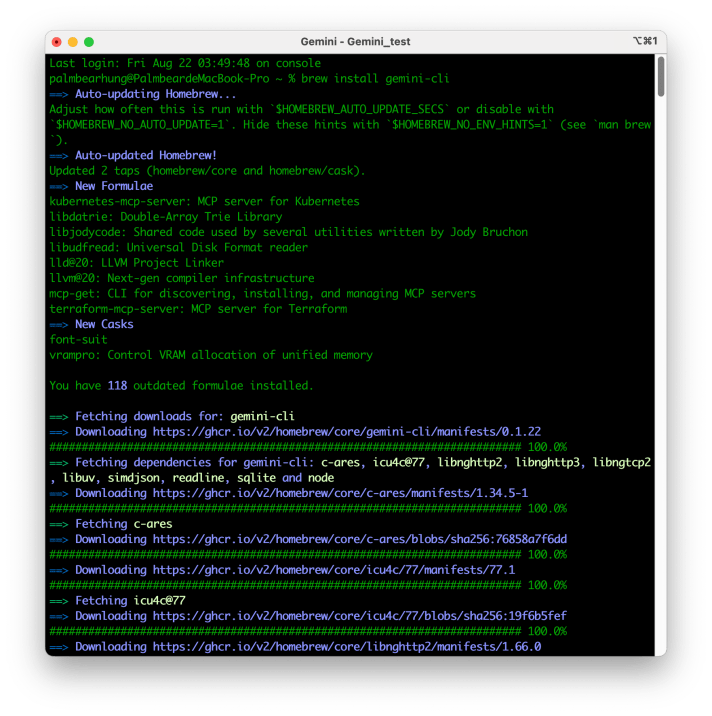
使用 brew 直接安裝:`brew install gemini-cli`

2. 步驟二:執行 Gemini CLI

安裝完成後,輸入 `gemini` 直接執行 Gemini CLI ,會出現下圖:

3. 步驟三:登入 Gemini CLI

我使用第一種方法,就是使用Google 帳號登入,最簡單。

(使用上下鍵可以在選項中移動,按下 “Enter" 鍵,選擇)

登入後就可以直接使用了。

三、問題

執行Gemini CLI後,出現這段文字,指的是「你現在是在"home"目錄下執行Gemini CLI,推薦在『特定專案』目錄下執行Gemini CLI。」(如下圖)

登入Gemini CLI後,我直接問 Gemini:

「我收到『You are running Gemini CLI in your home directory. It is recommended to run in a project-specific directory.』這段訊息,執行Gemini CLI對我有什麼壞處?

他把問題的壞處說明後,直接提出最佳解決方法。(如下圖)

我接著請Gemini「請為我建立一個目錄「Gemini Test Project」,並且在這個目錄下重新啟動Gemini」。

但基於AI的本分,可以幫我建立目錄,但不能直接幫我執行這個操作。

執行 `/quit` 離開 Gemini,出現下圖。

因為macOS的目錄名稱中間不能有空白,所以重新建立「Gemini_test」目錄,在執行 Gemini CLI。

Pico 及 Micro:bit 的程式或韌體在 macOS 13.01 無法拖拉上傳?請升級到 macOS 13.1

作者:順哥
email:palmbear@gmail.com

先前使用 MacBook pro 將 Pico 及 Micro:bit 的程式或韌體拖拉上傳到裝置的功能,非常方便。

Micro:bit,請參考 Micro:bit官網 Transfer from a computer 直接拖拉hex檔到Micro:bit。

但是在 macOS 更新到 macOS 13.01 後,便無法用拖拉上傳了,後來問了Google 大神才知道這是 macOS 的問題!

請參考下面網址:

參考資料1:https://www.raspberrypi.com/news/the-ventura-problem/

參考資料2:https://blog.adafruit.com/2022/10/31/uploading-uf2-files-with-macos-13-0-ventura-apple-microbit_edu-raspberry_pi-circuitpython/

Raspberry Pi 及 Adafruit 這二個單位都鼓勵大家跟 Apple 公司回報問題,希望 Apple 能儘快修正!

未修改前,可以使用終端機命令列來上傳程式或韌體到裝置上,命令參考如下:

cp -X MICROBIT.hex /Volumes/MICROBIT/

Apple 公司這幾天已經發佈了macOS 13.1,經過測試已經解決這個無法拖拉上傳程式的問題了。

如果你使用的朋友,建議大家趕快升級到 macOS 13.1。

在 macOS Monterey 12.4 環境,使用 Micropython 在 ESP32 SSD1306 顯示 圖形


作者:順哥
email:palmbear@gmail.com

資料來源:
1.image2cpp
2.| ESP32 教學 | MicroPython | I2C OLED Image 顯示圖像 | 209 |
3.SSD1306.py


Table of Contents

[TOC]


前言

測試在 macOS Monterey 12.4 環境,使用 Micropython 在 ESP32 用 SSD1306 OLED 顯示 image 圖形。


Step 1:使用的圖形

在 google網站搜尋一張看起來順眼,個人使用無版權的黑色的熊熊圖(png檔),就用這張圖來做測試,這張圖的原始尺寸為 “981 x 562″。
網頁畫面:


Step 2:將圖形轉換成 byte arrays

因為在macOS上找不到適當軟體可以使用,在 google網站上找到這個
image2ccp

這個網站可以將 image 轉換為 byte arrays(或將您的 byte arrays 轉換回 image),然後給 OLED 顯示出來。
網頁畫面:

  1. 選擇圖形 Select image:
    點選「選擇檔案」,上傳圖形檔。
    網頁畫面:
  2. 圖形設定 image Settings:
    在「畫布尺寸」 Canvas size(s) 欄位中,填入 OLED 的像數規格,我使用 “128 x 64″ ,所以在這裡我們填入 “128″ 及 “64″ ,圖形的原始尺寸為 “981 x 562″,這個網站可以將圖形直接轉成我們需要的大小。
    接下來選擇 “stretch to fill canvas" 「拉伸填充畫布」。
    網頁畫面:
  3. 圖形預覽 Preview:
    隨即就會在「圖形預覽」Preview,看到圖形。
  4. 輸出 Output:
    在「代碼輸出格式」"Code output format" 欄位中,填入 “plain bytes" ,
    接下來在「繪製模式」"Draw mode" 欄位中,填入 “Vertical – 1 bit per pixel" ,
    最後按下 “Generate code" 擷取碼,並將16進位的碼 Copy 下來。
    網頁畫面:

Step 3:測試程式碼

我使用 資料來源2 的程式碼,SSD1306 module 使用 資料來源3 ,並依照自己的ESP32接腳,改用SoftI2C,我的程式碼如下:

from machine import Pin, SoftI2C #從machine 匯入 Pin, SoftI2C
import ssd1306 #匯入 ssd1306模組
import framebuf #匯入 fram3buf模組

i2c = SoftI2C(scl=Pin(22), sda=Pin(21), freq=400000) # 建立 i2c 物件

oled=ssd1306.SSD1306_I2C(128, 64, i2c) #建立 oled096 物件,第 1 個參數與第 2 個參數設定為 OLED 模組的像素,第 3 個參數為 I2C 的物件名稱

# img64 是一個 bytearrays 的列表(List) 
img64 = [
0xff, 0xff, 0xff, 0xff, 0xff, 0xff, 0xff, 0xff, 0xff, 0xff, 0xff, 0xff, 0xff, 0xff, 0x7f, 0x7f, 
0x3f, 0x1f, 0x1f, 0x0f, 0x07, 0x07, 0x07, 0x03, 0x03, 0x01, 0x01, 0x01, 0x01, 0x01, 0x00, 0x00, 
0x00, 0x00, 0x00, 0x00, 0x00, 0x00, 0x00, 0x00, 0x00, 0x00, 0x00, 0x00, 0x01, 0x01, 0x01, 0x01, 
0x01, 0x01, 0x01, 0x01, 0x03, 0x03, 0x03, 0x03, 0x03, 0x03, 0x03, 0x03, 0x03, 0x03, 0x07, 0x07, 
0x07, 0x07, 0x07, 0x07, 0x07, 0x07, 0x07, 0x07, 0x07, 0x03, 0x03, 0x03, 0x01, 0x01, 0x01, 0x01, 
0x01, 0x01, 0x01, 0x01, 0x03, 0x03, 0x03, 0x03, 0x07, 0x07, 0x07, 0x07, 0x0f, 0x0f, 0x0f, 0x1f, 
0x1f, 0x1f, 0x1f, 0x1f, 0x1f, 0x1f, 0x1f, 0x1f, 0x1f, 0x3f, 0x3f, 0x3f, 0x3f, 0x3f, 0x7f, 0x7f, 
0x7f, 0x3f, 0x3f, 0x7f, 0xff, 0xff, 0xff, 0xff, 0xff, 0xff, 0xff, 0xff, 0xff, 0xff, 0xff, 0xff, 
0xff, 0xff, 0xff, 0xff, 0xff, 0xff, 0xff, 0xff, 0x3f, 0x1f, 0x07, 0x03, 0x01, 0x00, 0x00, 0x00, 
0x00, 0x00, 0x00, 0x00, 0x00, 0x00, 0x00, 0x00, 0x00, 0x00, 0x00, 0x00, 0x00, 0x00, 0x00, 0x00, 
0x00, 0x00, 0x00, 0x00, 0x00, 0x01, 0x01, 0x03, 0x03, 0x07, 0x2f, 0x7f, 0xff, 0xff, 0xff, 0xff, 
0xff, 0xff, 0xff, 0xff, 0xff, 0x3f, 0x07, 0x00, 0x00, 0x00, 0x00, 0x00, 0x00, 0x00, 0x00, 0x00, 
0x00, 0x00, 0x00, 0x00, 0x00, 0x00, 0x00, 0x00, 0x00, 0x00, 0x00, 0x00, 0x00, 0x00, 0x00, 0x00, 
0x00, 0x00, 0x00, 0x00, 0x00, 0x00, 0x00, 0x00, 0x00, 0x00, 0x00, 0x00, 0x00, 0x81, 0xc3, 0xf7, 
0xff, 0xff, 0xff, 0xff, 0xc1, 0x00, 0x00, 0x00, 0x00, 0x00, 0x00, 0x00, 0x00, 0x00, 0x00, 0x00, 
0x00, 0x00, 0x00, 0x00, 0x00, 0x00, 0x00, 0x00, 0x00, 0x00, 0x00, 0x00, 0x00, 0x00, 0x00, 0x00, 
0x00, 0x00, 0x00, 0x00, 0x08, 0x38, 0xf8, 0xf8, 0xfc, 0xfc, 0xfc, 0xfc, 0xfc, 0xfc, 0xfe, 0xfe, 
0xfe, 0xfe, 0xfe, 0xff, 0xff, 0xff, 0xff, 0xff, 0xfe, 0xfe, 0xff, 0xff, 0xff, 0xff, 0xff, 0xff, 
0xff, 0xff, 0xff, 0xff, 0xff, 0xfe, 0xfc, 0xfc, 0x3c, 0x00, 0x00, 0x00, 0x00, 0x00, 0x00, 0x00, 
0x00, 0x00, 0x00, 0x00, 0x00, 0x00, 0x00, 0x00, 0x00, 0x00, 0x00, 0x00, 0x00, 0x00, 0x00, 0x00, 
0x00, 0x00, 0x00, 0x00, 0x80, 0x80, 0x80, 0x80, 0x80, 0x80, 0x80, 0x80, 0x80, 0x80, 0x80, 0x80, 
0x80, 0x80, 0x80, 0xc0, 0xc0, 0x80, 0xc0, 0xc0, 0xc0, 0xe0, 0xe0, 0xe0, 0x20, 0x00, 0x00, 0x00, 
0x00, 0x00, 0x00, 0x00, 0x00, 0x00, 0x00, 0x00, 0x00, 0x00, 0x00, 0x00, 0x00, 0x00, 0x00, 0x00, 
0x00, 0x80, 0xc0, 0xf0, 0x80, 0x00, 0x00, 0x00, 0x00, 0x00, 0x00, 0x00, 0x00, 0x00, 0x00, 0x00, 
0x00, 0x00, 0x00, 0x00, 0x00, 0x00, 0x01, 0x03, 0x0f, 0x3f, 0x7f, 0xff, 0xff, 0xff, 0xff, 0xff, 
0xff, 0xff, 0xff, 0xff, 0xff, 0xff, 0xff, 0xff, 0xff, 0xff, 0xff, 0xff, 0xff, 0xff, 0xff, 0xff, 
0xff, 0xff, 0x3f, 0x1f, 0x0f, 0x07, 0x03, 0x00, 0x00, 0x00, 0x00, 0x00, 0x00, 0x00, 0x00, 0x00, 
0x00, 0x00, 0x00, 0x00, 0x00, 0x00, 0x00, 0x00, 0x00, 0x00, 0x00, 0x00, 0x00, 0x00, 0x00, 0x00, 
0x00, 0x00, 0xe0, 0xfe, 0xff, 0xff, 0xff, 0xff, 0xff, 0xff, 0xff, 0xff, 0xff, 0xff, 0xff, 0xff, 
0xff, 0xff, 0xff, 0xff, 0xff, 0xff, 0xff, 0xff, 0xff, 0xff, 0xff, 0x1f, 0x02, 0x00, 0x00, 0x00, 
0x00, 0x00, 0x00, 0x00, 0x00, 0x00, 0x00, 0x00, 0x00, 0x00, 0x00, 0x00, 0x00, 0x80, 0xf0, 0xfc, 
0xfc, 0xff, 0xff, 0xff, 0xff, 0xff, 0xfc, 0xf8, 0xf8, 0xf0, 0xe0, 0xc0, 0x80, 0x00, 0x00, 0x00, 
0x00, 0x00, 0x00, 0x00, 0x00, 0x00, 0x00, 0x00, 0x00, 0x00, 0x00, 0x01, 0x03, 0x07, 0x1f, 0x3f, 
0x7f, 0x3f, 0x7f, 0x7f, 0x7f, 0xff, 0xff, 0xff, 0xff, 0xff, 0xff, 0xff, 0xff, 0xff, 0xff, 0xff, 
0xc1, 0x80, 0x00, 0x00, 0x00, 0x00, 0x00, 0x00, 0x00, 0x00, 0x00, 0x00, 0x00, 0x00, 0x80, 0xc0, 
0xc0, 0xe0, 0xf0, 0xf8, 0x00, 0x00, 0x00, 0x00, 0x00, 0x00, 0x00, 0x00, 0x00, 0x00, 0x00, 0x00, 
0x00, 0x00, 0xff, 0xff, 0xff, 0xff, 0xff, 0xff, 0xff, 0xff, 0xff, 0xff, 0xff, 0xff, 0xff, 0xff, 
0xff, 0xff, 0xff, 0xff, 0xff, 0xff, 0xff, 0xff, 0xff, 0xff, 0xff, 0x01, 0x00, 0x00, 0x00, 0x00, 
0x00, 0x00, 0x00, 0x00, 0x00, 0x00, 0x00, 0x00, 0x00, 0x00, 0xc0, 0xfc, 0xfe, 0xff, 0xff, 0xff, 
0xff, 0xff, 0xff, 0xff, 0xff, 0xff, 0xff, 0xff, 0xff, 0xff, 0xff, 0xff, 0xff, 0xff, 0xff, 0xff, 
0xfe, 0xf8, 0xf8, 0xf8, 0xf8, 0xf0, 0xf8, 0xf8, 0xf0, 0xf0, 0xf0, 0xf0, 0xf0, 0xf0, 0xf0, 0xf0, 
0xf0, 0xf0, 0xf0, 0xf0, 0xf8, 0xfc, 0xfd, 0xff, 0xff, 0xff, 0xff, 0xff, 0xff, 0xff, 0xff, 0xff, 
0xff, 0xff, 0xfc, 0x80, 0x00, 0x00, 0x00, 0x00, 0x00, 0x00, 0x00, 0x00, 0x00, 0x00, 0x01, 0x03, 
0x87, 0x9f, 0xff, 0xff, 0xfc, 0xf8, 0xf8, 0xf0, 0xf0, 0xf0, 0xf0, 0xf0, 0xf0, 0xf0, 0xf0, 0xf0, 
0xf0, 0xf0, 0xf0, 0xf8, 0xf9, 0xff, 0xff, 0xff, 0xff, 0xff, 0xff, 0xff, 0xff, 0xff, 0xff, 0xff, 
0xff, 0xff, 0xff, 0xff, 0xff, 0xff, 0xff, 0xff, 0xff, 0xff, 0xfd, 0xf0, 0xf0, 0xe0, 0xe0, 0xe0, 
0xe0, 0xe0, 0xe0, 0xe0, 0xe0, 0xe0, 0xe0, 0xc0, 0xc0, 0xc0, 0xc0, 0xc1, 0xc1, 0xc1, 0xc3, 0xc3, 
0xe7, 0xdf, 0xff, 0xff, 0xff, 0xff, 0xff, 0xff, 0xff, 0xff, 0xff, 0xff, 0xff, 0xff, 0xff, 0xff, 
0xff, 0xff, 0xff, 0xff, 0xff, 0xff, 0xff, 0xff, 0xff, 0xff, 0xff, 0xff, 0xff, 0xff, 0xff, 0xff, 
0xff, 0xff, 0xff, 0xff, 0xff, 0xff, 0xff, 0xff, 0xff, 0xff, 0xff, 0xff, 0xff, 0xff, 0xff, 0xff
]

img064b = bytearray(img64)  # 將 img64 轉成 bytearray 型態,並取名 img64b
imgbuf=framebuf.FrameBuffer(img064b,128,64,framebuf.MONO_VLSB) #framebuf 第 1 個參數為影像資料的 bytearray名稱,第 2、3 個參數是影像的寬度與高度,第 4 個參數是像素形式與排列,MONO_VLSB 是指 單色+垂直+LSB
oled.blit(imgbuf, 0, 0) #blit方法,是將imgbuf 物件,由指定的 X,Y 位置,依序開始填入 OLED 記憶體
oled.invert(1) #以反白螢幕方式顯示圖形畫面
oled.show() #顯示螢幕畫面

程式說明

  1. 因為 framebuf 使用的資料型態是 bytearray,所以將 img64 轉成 bytearray 型態,並取名 img64b。
  2. 我們在轉檔時時是採用單色與垂直方向排列(Vertical)的方式存檔,所以預設轉出陣列就是 1btye 會有 8 像素,資料排列也就照著直線方式一條一條轉換,img64 原始資料共有 1024 個 bytes,換算成像素也就是1024×8=8192個像素,與我們OLED 的像素128*64=8192 Pixel 是相符的。
  3. mgbuf 為新建立的 framebuf 物件,framebuf 第 1 個參數為影像資料的 byte 序列,第 2、3 個參數分別為影像的寬度與高度,第 4 個參數就是像素形式與排列,MONO_VLSB 是指 單色+垂直+LSB(如果是其他形式可以填入framebuf.MONO_HLSB、framebuf.RGB565、framebuf.GS4_HMSB等。
  4. blit 這個方法也是源自 framebuf,將建立好的 imgbuf 物件,由指定的 X,Y 位置,依序開始填入 OLED 記憶體內。
    Micropython framebuf 模組的官方說明

成果

完成畫面:

我使用的硬體:

測試影片


tags: Micropython ESP32 Macbook pro 2021 macOS 12.4 Monterey

MacBook Pro Monterey,使用 Arduino IDE 燒錄 ESP8266 會出現燒錄錯誤 “pyserial or esptool directories not found next to this upload.py tool.”

資料來源:https://www.tweaking4all.com/forum/arduino/macos-aruino-ide-how-to-fix-pyserial-or-esptool-directories-not-found-next-to-this-upload-py-tool-error-esp8266/

錯誤訊息如下:

pyserial or esptool directories not found next to this upload.py tool.
An error occurred while uploading the sketch

macOS版本:Monterey 12.3.1

ESP8266 Core version:2.6.3

aArduino IDE version:1.8.19

解決方法:

  1. 打開這個檔案
    file~/Library/Arduino15/packages/esp8266/hardware/esp8266/2.6.3/tools/pyserial/serial/tools/list_ports_osx.py
  2. 註釋掉這兩行
iokit = ctypes.cdll.LoadLibrary('/System/Library/Frameworks/IOKit.framework/IOKit')    
cf = ctypes.cdll.LoadLibrary('/System/Library/Frameworks/CoreFoundation.framework/CoreFoundation')

加入這兩行:

iokit = ctypes.cdll.LoadLibrary('/System/Library/Frameworks/IOKit.framework/IOKit')
cf = ctypes.cdll.LoadLibrary('/System/Library/Frameworks/CoreFoundation.framework/CoreFoundation')

修改完成後,程式碼應該像下面這樣子才對:

from serial.tools import list_ports_common

#iokit = ctypes.cdll.LoadLibrary(ctypes.util.find_library('IOKit'))
#cf = ctypes.cdll.LoadLibrary(ctypes.util.find_library('CoreFoundation'))
iokit = ctypes.cdll.LoadLibrary('/System/Library/Frameworks/IOKit.framework/IOKit')
cf = ctypes.cdll.LoadLibrary('/System/Library/Frameworks/CoreFoundation.framework/CoreFoundation')

kIOMasterPortDefault = ctypes.c_void_p.in_dll(iokit, "kIOMasterPortDefault")
kCFAllocatorDefault = ctypes.c_void_p.in_dll(cf, "kCFAllocatorDefault")
這樣就可以正常燒錄了!
Done!

Apple 的 iCloud 實在太棒了!

原先想說會搬移舊資料會很傷腦筋,結果一點都不費力,只要登入iClloud就可以了,完全都不需要額外做什麼。

就是要花時間而已!

Macbook Pro星期六晚上帶回家,到今天晚上,過了2天,我的新Macbook Pro經由iColud就已經同步完成了。

但是,不是所有資料都下載到新Macbook Pro,只是有用到的會自動下載下來,其他就等你什麼時候會用到,需要用到時,再下載下來就可以了,不用擔心空間不夠用。

整理舊資料,只要刪除,就會同步刪除iCloud的檔案。

但是,如果要保存資料,要另外儲存在其他外接硬碟或隨身碟,再刪除喔!

真的太好用了!

有使用Apple的產品建議一定要購買iCloud,真的超級方便。


tags: Macbook pro 2021 macOS 12.3.1 Monterey

2021 Macbook Pro 14吋 安裝 Arduino IDE 1.18.9 在 ESP32 發生 「exec: “python" : executable file not found in $PATH」錯誤

資料來源:
1. https://forum.arduino.cc/t/esp32-problem-with-compilation-on-macos-12-3-monterey/969771
2. https://forum.arduino.cc/t/mac-os-update-killed-esp32-sketch/969580/8

作者:順哥
email:palmbear@gmail.com

Table of Contents

[TOC]

前言

最近新購買2021 Macbook Pro 14吋 使用 Arduino IDE 1.18.9 在ESP32開發板上傳程式碼時,發生 「exec: “python": executable file not found in $PATH’」錯誤。上網查了發現解決方法,留下紀錄,以免後續再碰到時,不知如何解決。

問題

ESP32: problem with compilation on MacOS 12.3 Monterey

問題頁面

網頁畫面:

解決方法
網頁畫面:


我的解決方法

我按照網頁上的解決方法,更改
/Users/palmbearhung/Library/Arduino15/packages/esp32/hardware/esp32/1.0.6/platform.txt 文件內容:

# From
tools.gen_esp32part.cmd=python "{runtime.platform.path}/tools/gen_esp32part.py"

# To
tools.gen_esp32part.cmd=/usr/local/bin/python "{runtime.platform.path}/tools/gen_esp32part.py"

但是還時不能上傳!!!

Arduino IDE跟我說「no such file or directory」

將 python 更改為 python3 也不行!!!

這倒底是怎麼一回事呢?

後來把整個文章看完,才知道也有人跟我一樣。

但是有解決方法,就是:

找出 python3放在電腦的哪個位置?

使用 which python3 指令,找出 python3 的所在位置。

原來我的 python3 位置跟他們的不一樣!

更改完成後,儲存檔案。

再次上傳檔案,成功!!!


tags: Arduino ESP32 Macbook pro 2021 macOS 12.3.1 Monterey

在Arduino 使用ESP32與網路同步時間,獲取日期及時間

作者:順哥
email:palmbear@gmail.com

資料來源:
https://randomnerdtutorials.com/esp32-date-time-ntp-client-server-arduino/

Table of Contents

[TOC]

前言

如何使用 ESP32 和 Arduino IDE 從 NTP Server 同步日期和時間?

獲取日期和時間在Aiot應用中很有用。要從 NTP Server獲取時間,ESP32需要連接 Internet,而且不需要額外的硬體(如 RTC 時鐘)。


NTP(Network Time Protocol, 網路時間協議)

NTP想要將所有參與電腦的協調世界時(UTC)時間同步到ms的誤差內。NTP通常可以在internet保持幾十毫秒的誤差,並且在理想的區域網路環境中可以實現超過1毫秒的精度。

MCU與NTP Server同步示意圖:
資料來源:randomnerdtutorials.com


硬體

  1. AI Thinker ESP32-S(NODMCU-32 V1.2)
  2. ESP32擴展板
  3. USB充電傳輸線

軟體

  1. Arduino IDE 2.0.0 RC5 for MacOS:
  2. 需要的Library:

<WiFi.h>
<time.h>


程式碼

  1. 使用 ESP32 加上 ESP32擴展板,程式碼如下:
/*
  Rui Santos
  Complete project details at https://RandomNerdTutorials.com/esp32-date-time-ntp-client-server-arduino/

  Permission is hereby granted, free of charge, to any person obtaining a copy
  of this software and associated documentation files.

  The above copyright notice and this permission notice shall be included in all
  copies or substantial portions of the Software.
*/

#include <WiFi.h>
#include <time.h>

const char* ssid     = "Your wifi ssid";
const char* password = "your password";

const char* ntpServer = "time.google.com";
const long  gmtOffset_sec = 28800; //台灣時區+8hr,28800=8*60*60
const int   daylightOffset_sec = 0;  //台灣無日光節約時間

void setup(){
  Serial.begin(115200);

  // Connect to Wi-Fi
  Serial.print("Connecting to ");
  Serial.println(ssid);
  WiFi.begin(ssid, password);
  while (WiFi.status() != WL_CONNECTED) {
    delay(500);
    Serial.print(".");
  }
  Serial.println("");
  Serial.println("WiFi connected.");

  // Init and get the time
  configTime(gmtOffset_sec, daylightOffset_sec, ntpServer);
  printLocalTime();

  //disconnect WiFi as it's no longer needed
  WiFi.disconnect(true);
  WiFi.mode(WIFI_OFF);
}

void loop(){
  delay(5000);
  printLocalTime();
}

void printLocalTime(){
  struct tm timeinfo;
  if(!getLocalTime(&timeinfo)){
    Serial.println("Failed to obtain time");
    return;
  }
  Serial.println(&timeinfo, "%A, %Y %m %d %H:%M:%S"); //%A-Sunday,%Y-2022,%m-3,%d-27,%H:%M:%S-21:10:02
  Serial.println(&timeinfo, "%A, %B %d %Y %H:%M:%S"); //%A-Sunday,%B-March,%d-27,%Y-2022,%H:%M:%S-21:10:02
  Serial.print("Day of week: "); //顯示英文 星期
  Serial.println(&timeinfo, "%A"); //Day of week: Sunday
  Serial.print("Month: "); //顯示英文 月份
  Serial.println(&timeinfo, "%B"); //Month: March
  Serial.print("Day of Month: "); //顯示英文 日
  Serial.println(&timeinfo, "%d"); //Day of Month: 27
  Serial.print("Year: "); //顯示英文 西元年
  Serial.println(&timeinfo, "%Y"); //Year: 2022
  Serial.print("Hour: "); //顯示英文 時 24小時制
  Serial.println(&timeinfo, "%H"); //Hour: 21
  Serial.print("Hour (12 hour format): "); //顯示英文 時 12小時制
  Serial.println(&timeinfo, "%I"); //Hour (12 hour format): 9
  Serial.print("Minute: "); //顯示英文 分
  Serial.println(&timeinfo, "%M"); //Minute: 01
  Serial.print("Second: "); //顯示英文 秒
  Serial.println(&timeinfo, "%S"); //Second: 24

  Serial.println("Time variables"); //時間變數Time variables
  char timeHour[3]; //宣告時間小時變數:timeHour
  strftime(timeHour,3, "%H", &timeinfo);
  Serial.println(timeHour); //顯示時數:22
  char timeWeekDay[10]; //宣告時間星期變數:timeWeekDay
  strftime(timeWeekDay,10, "%A", &timeinfo);
  Serial.println(timeWeekDay); //顯示星期:Sunday
  Serial.println("*****************************************************");

}

tags: NTP Arduino ESP32 ESP8266 Wio terminal

How to remove and reinstall Node-Red in macOS Big Sur 11.4

資料來源:
1. https://www.hackster.io/daquilnp/3-steps-to-installing-node-red-and-bean-nodes-on-mac-os-ebaee2
2.https://stackoverflow.com/questions/11177954/how-do-i-completely-uninstall-node-js-and-reinstall-from-beginning-mac-os-x?newreg=c6cfabe02a584b76a1812859f2575651
3.https://stackabuse.com/how-to-uninstall-node-js-from-mac-osx/
4.https://diyprojects.io/installing-using-node-red-macos-windows/

Uninstall Node-red

原本已經參考這位大神(資料來源1)他的安裝步驟,安裝完成Node-Red,因 使用過程中,Tensorfolw coco ssd 節點啟動不起來,移除也無法移除,只要重新安裝。

第一次刪除重新安裝步驟(失敗):(參考益師傅Node-red Windows版災難復原)

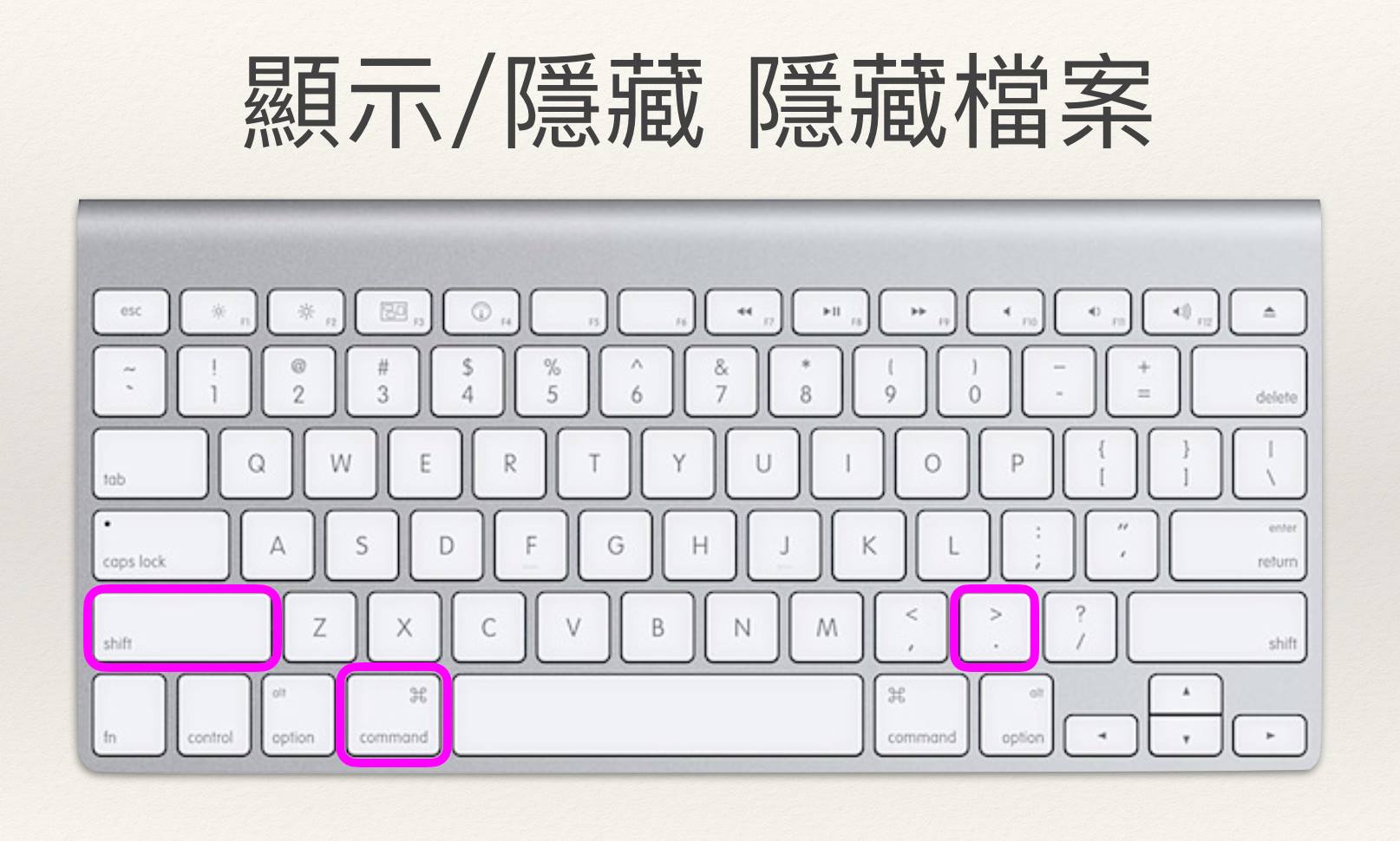
1.將隱藏檔案顯示出來

Shift + Command + .
這樣就可以顯示出隱藏的檔案囉,只要再按一次就可以重新隱藏。(參考MacUknow

Mac 隱藏檔案

2.備份.Node-Red 檔案夾的這三個檔案

(1)flows.json:這是原本流程頁簽內所有的流程的檔案,重安裝完成後匯入 Node-Red。
(2)package.json:這是原本已安裝節點的檔案,重安裝完成後匯入 Node-Red
(3)settings.js:這是Node_Red 的設定檔,存放著使用者帳號、密碼,重安裝完成後,將帳號、密碼相關資料複製到新的 settings.js 檔案中。

3.刪除.Node-Red 相關檔案夾
(1)刪除.node-Red 檔案夾
(2)刪除.node-gyd 檔案夾
(3)刪除.nmp 檔案夾

4.重新開機。

5.重新安裝Node-Red

使用大神安裝檔安裝,會把 Node-Red 與 Light Blue Bean節點一起安裝,但是我主要是安裝 Node-Red ,Light Blue Bean節點一起安裝,只要不用其實沒有什麼關係,或者安裝完成 Node-Red 後,再把它移除,以免與想要使用的節點衝到。

打開 安裝檔的目錄按滑鼠右鍵 > 服務 > 終端機視窗打開 ,

安裝完成後,Tensorfolw coco ssd 節點仍然啟動不起來,只好再次刪除重裝!!!

//////////////////////////////////////////////////////////////////////////////////////////////////////////////

第二次刪除重新安裝步驟:(參考資料來源2資料來源3

1.將隱藏檔案顯示出來

Shift + Command + .
這樣就可以顯示出隱藏的檔案囉,只要再按一次就可以重新隱藏。(參考MacUknow

2.備份.Node-Red 檔案夾的這三個檔案(先前已完成)

3.刪除 Node-Red 所有相關檔案夾
(1)刪除.node-Red 檔案夾
(2)刪除.node-gyd 檔案夾
(3)刪除.nmp 檔案夾
(4)再參考資料來源2資料來源3 手動刪除資料夾或檔案。
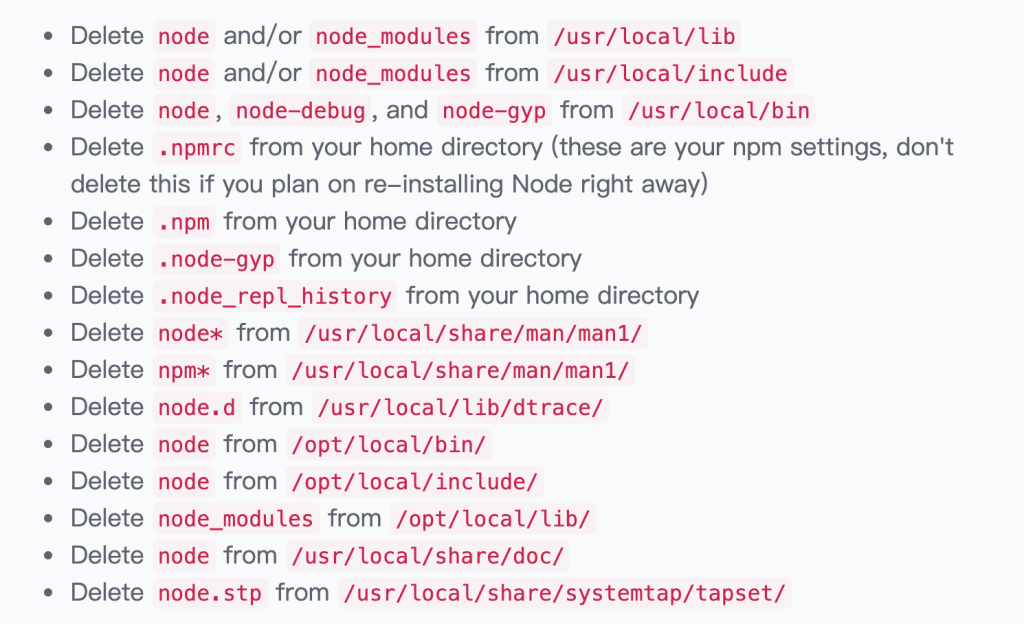
下面這些可能就是所有的檔案,但是作者不確定,但我刪除這些就沒問題了。

Uninstall Node-red 手動刪除檔案清單

這樣刪除後就算是手動乾淨移除 Node-red了!

Install Node-red

參考 資料來源4 進行安裝:

1.先安裝 Node.js :前往官方網站下載 安裝檔,請下載14.17.5 LTS 版本,或者是參考 這裡 使用 Command Line 手動安裝。

Node.js官方下載點
Node-red Command Line 安裝

2.安裝 Node-red

(1)打開終端機輸入下面程式碼

sudo npm install -g --unsafe-perm node-red

您必須在 sudo 的 npm 命令之前執行。 -g 表示將上傳到 npm 目錄,並且可用於所有 node.js。 –unsafe-perm 允許在出現錯誤時繼續安裝。

(2)安裝完成後,打開終端機輸入下面程式碼:

killall Finder

重新啟動 Finder

(3)啟動 Node-red:再次打開終端機輸入下面程式碼:

node-red
啟動 Node-red

(4)最後打開瀏覽器,輸入:http://127.0.0.1:1880

Done !