NUVOTON 新唐 NuMaker-UNO-M4 開箱文

作者:順哥
email:palmbear@gmail.com

參考資料 1:NUVOTON 新唐 NuMaker-UNO-M4 產品頁,https://direct.nuvoton.com/tw/numaker-uno-m4?srsltid=AfmBOopFhCXT5ftx5FTkoTcIVZLXr0MX_9o07sI9xKODXf4wINY5kuBc
參考資料 2:Chat Everywhere,https://v2.chateverywhere.app/zh

一、簡介(引用參考資料 1)
新唐 NuMaker-UNO-M4 開發板是使用新唐 MCU 作為微控制器的一款 Arduino 相容硬體。它的功能可以透過 Arduino 相容的擴充板來擴展。使用者可以使用 Arduino 相容的 IDE 來開發他們的應用程式,並充分利用大量的公開範例。

NuMaker-UNO-M4 是一個特別的開發工具,用於新唐 Cortex®-M4 系列的使用者透過其可以開發並容易驗證該應用程式。其目的是提供一套開發及學習的平台,具有 ADC、PWM、I²C、SPI 等周邊功能,使用者可以設定不同功能的 NuMaker-UNO-M4 開發套件,也可根據使用者需求增加外設功能的開發套件,易於上手,提供開發所需的靈活性。

二、外觀
NUVOTON 新唐 NuMaker-UNO-M4 外觀
![IMG_3658](https://hackmd.io/_uploads/S11BnjYtel.jpg)
![IMG_3659](https://hackmd.io/_uploads/Hk1r3iFtxx.jpg)
![IMG_3660](https://hackmd.io/_uploads/HJyBniKKgl.jpg)

三、主要特點(引用參考資料 1)
特色:
* 學習/應用/調試:全系列開發工具
* 攜帶方便的開發調試工具包
* 豐富的微控制器周邊設備功能,如ADC、PWM、I²C、SPI、UART…
* 具有高可擴展性:連接電路板可以改變不同的應用模組
* 相容 Arduino UNO R4
* 支持對 USB 的虛擬串口
* 支援 Arduino 的 IDE
* 多元的供電方式
– USB VBUS
– 外部電源支援 5V,可以從其他電源提供給 DC 插座
* LEDs 狀態指示燈
– Power, I/O, UART (Tx, Rx) 和 SPI CLK 狀態…等燈號
* 提供 RESET 按鈕

NuMaker-UNO-M4開發板接頭名稱及定義如下:
![IMG_3661](https://hackmd.io/_uploads/r1JS2sFFxl.jpg)

![IMG_3662](https://hackmd.io/_uploads/S1kS3sKFge.png)

插上電後,有一個閃爍3顆LED的程式已預先燒入上去。

四、Arduino IDE 開發環境安裝

1. 至Arduino 官網下載 Arduino IDE 開發環境,執行所下載之安裝檔,並安裝 Arduino IDE。
2. 執行 Arduino IDE。選擇 File → Preferences
3. 並在 Additional Board Manager 的欄位中輸入下列網址: https://raw.githubusercontent.com/OpenNuvoton/NuMaker_UNO/master/package_nuvoton_index.json
![截圖 2025-08-24 15.59.33](https://hackmd.io/_uploads/SJA0jjKKel.png)

4. 利用左邊「開發板」按鈕,搜尋NuMaker UNO M4,並安裝「UnMaker M4」,目前最新版是「13.3.9」。

選擇 Tools → Board → Boards Manager ,
NuMaker M4 會出現在清單底部;點選 NuMaker M4 並按下 Install
![截圖 2025-08-24 16.00.05](https://hackmd.io/_uploads/HJRRoottex.png)
![截圖 2025-08-24 16.00.45](https://hackmd.io/_uploads/SJA0ioFKlg.png)
![截圖 2025-08-24 16.02.59](https://hackmd.io/_uploads/r1R0oitKxl.png)
5. 待軟體包下載安裝完畢,即可在 Tools → Board 選用 NuMaker-UNO-M4
![截圖 2025-08-24 16.03.35](https://hackmd.io/_uploads/HkRAiiKKex.png)
6. 選擇開發板NuMaker-UNO-M4,以及連接埠。
![截圖 2025-08-24 16.29.57](https://hackmd.io/_uploads/ByACsjtKgx.png)

或點選「工具」,再選擇開發板NuMaker-UNO-M4,以及連接埠
![截圖 2025-08-24 16.06.36](https://hackmd.io/_uploads/Bke0CojKYee.png)
![截圖 2025-08-24 16.07.27](https://hackmd.io/_uploads/HJCCsoKtel.png)
7. 開啟範例程式:Blink,並上傳
![截圖 2025-08-24 16.09.13](https://hackmd.io/_uploads/BJA0joKYxx.png)
8. 編譯完成上傳失敗,缺少「isptool」這個程式。
![截圖 2025-08-25 18.13.38](https://hackmd.io/_uploads/SyFDD2Ytll.png)
9. 「isptool」這個程式是一個Windows OS的bat檔,在macOS當然不能用。
![截圖 2025-08-24 16.22.36](https://hackmd.io/_uploads/BkARsiYKgl.png)
10. 經過一個下午,找ChatGPT幫忙,用Python做出了「Nuvoton ISP Tool」GUI程式,但是無法正常連接 NuMaker-UNO-M4。
![截圖 2025-08-24 18.42.41](https://hackmd.io/_uploads/S1CRjoKYeg.png)
11. 使用「UTM」Windows虛擬機,進行測試才順利上傳Blink程式。
![截圖 2025-08-25 17.00.10](https://hackmd.io/_uploads/SkH2jntKgg.png)
![截圖 2025-08-25 17.03.13](https://hackmd.io/_uploads/HJBho2KFxx.png)
12. Blink.py測試程式
點亮、熄滅內建LED,每0.2秒循環一次內建LED,Blink.py。
“`c++=
//Blink程式,閃爍內建「LED 3」每0.2秒閃爍一次
// the setup function runs once when you press reset or power the board
void setup() {
// initialize digital pin LED_BUILTIN as an output.
pinMode(LED_BUILTIN, OUTPUT);
}

// the loop function runs over and over again forever
void loop() {
digitalWrite(LED_BUILTIN, HIGH); // turn the LED on (HIGH is the voltage level)
delay(200); // wait for a second
digitalWrite(LED_BUILTIN, LOW); // turn the LED off by making the voltage LOW
delay(200); // wait for a second
}
“`
測試程式Blink.ino影片

五、結論
目前「NUVOTON 新唐 NuMaker-UNO-M4」在Arduino IDE開發環境,僅支援「Windows OS」,不支援「macOS」。

希望「新唐NUVOTON」早點支援 macOS。

Raspberry Pi 5 開箱文

作者:順哥
email:palmbear@gmail.com

Table of Contents

[TOC]

緣起

Raspberry Pi 5 在2023年10月發表後,一直沒有出現在市面上發售,在digikey的行銷email中知道digikey有在預購,就趕緊上網下訂預購,經過一個多月的時間,Raspberry Pi 5 在 2023/11/20 終於到手了。

Raspberry Pi 5 網頁:
https://www.raspberrypi.com/products/raspberry-pi-5/

digikey官網:
https://www.digikey.tw/

外觀

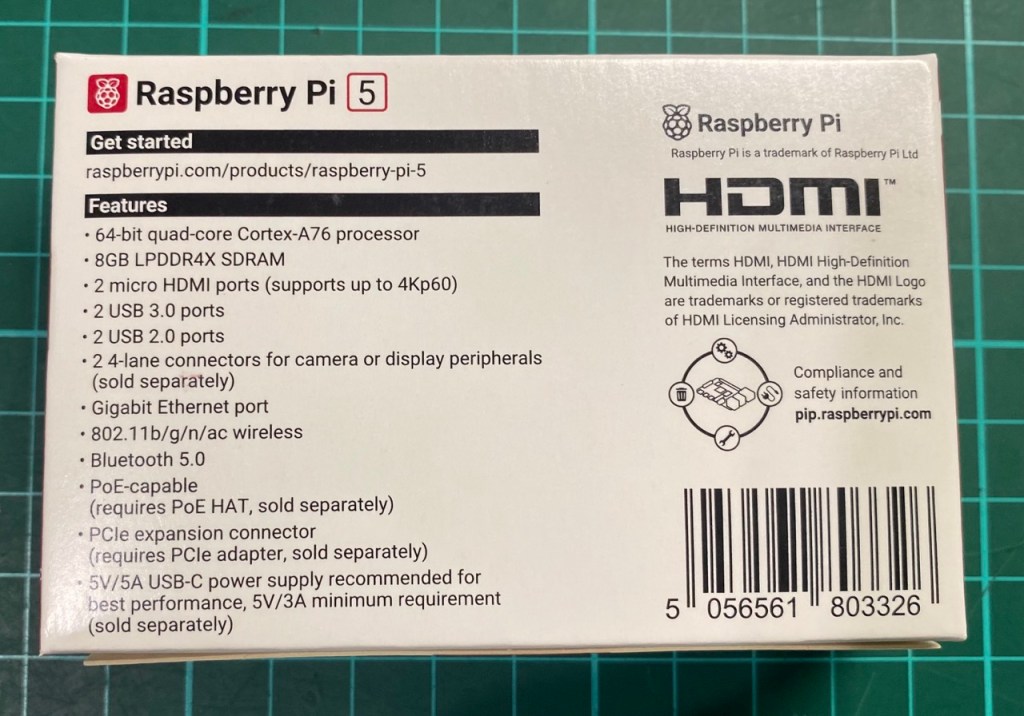
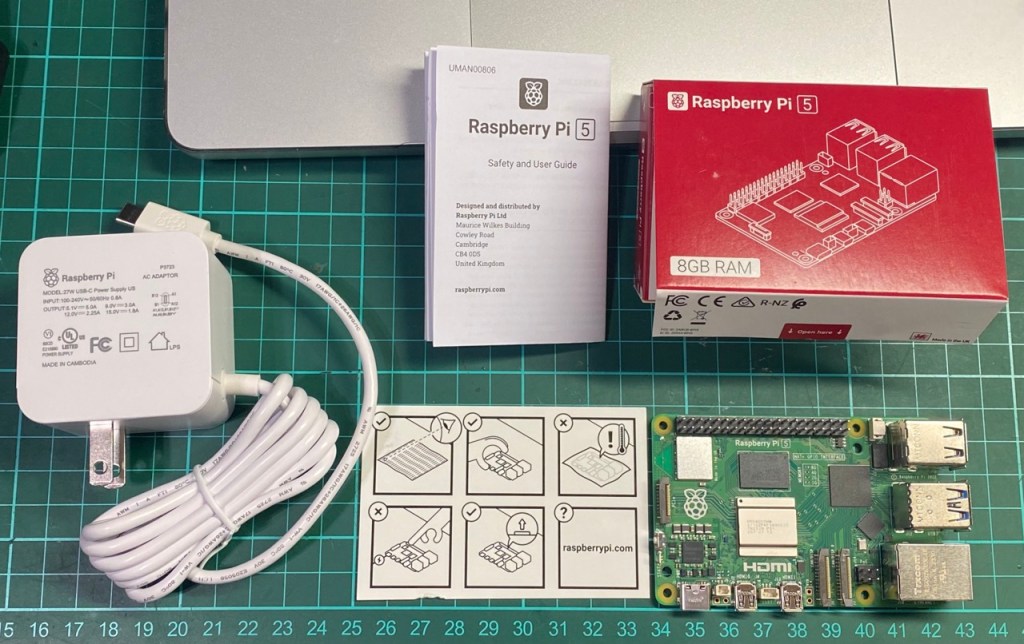
  1. 我們的戰利品

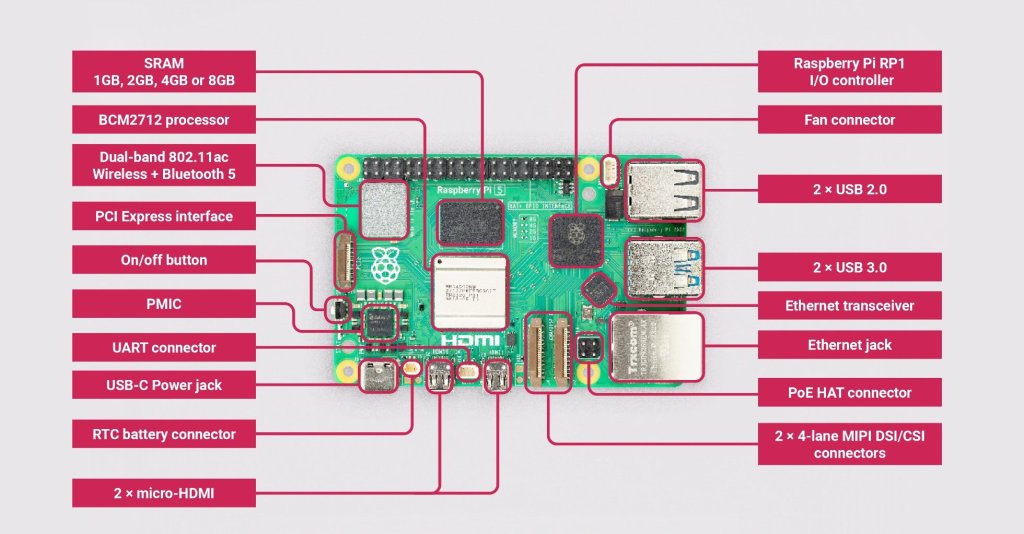
硬體規格

  • Broadcom BCM2712 2.4GHz quad-core 64-bit Arm Cortex-A76 CPU, with cryptography extensions, 512KB per-core L2 caches and a 2MB shared L3 cache
    Broadcom BCM2712 2.4GHz 四核 64 位元 Arm Cortex-A76 CPU,具有加密擴展、每核 512KB 二級緩存和 2MB 共用三級緩存
  • VideoCore VII GPU, supporting OpenGL ES 3.1, Vulkan 1.2
    VideoCore VII GPU,支援 OpenGL ES 3.1、Vulkan 1.2
  • Dual 4Kp60 HDMI® display output with HDR support
    雙 4Kp60 HDMI® 顯示輸出,支援 HDR
  • 4Kp60 HEVC decoder
    4Kp60 HEVC 解碼器
  • LPDDR4X-4267 SDRAM (4GB and 8GB SKUs available at launch)
    LPDDR4X-4267 SDRAM(發佈時提供 4GB 和 8GB SKU)
  • Dual-band 802.11ac Wi-Fi®
    雙頻 802.11ac Wi-Fi®
  • Bluetooth 5.0 / Bluetooth Low Energy (BLE)
    藍牙 5.0 / 低功耗藍牙 (BLE)
  • microSD card slot, with support for high-speed SDR104 mode
    microSD 卡插槽,支援高速 SDR104 模式
  • 2 × USB 3.0 ports, supporting simultaneous 5Gbps operation
    2 個× USB 3.0 埠,支援同時 5Gbps 操作
  • 2 × USB 2.0 ports
    2 個× USB 2.0 埠
  • Gigabit Ethernet, with PoE+ support (requires separate PoE+ HAT)
    千兆乙太網,支援 PoE+(需要單獨的 PoE+ HAT)
  • 2 × 4-lane MIPI camera/display transceivers
    2 × 4 通道 MIPI 攝像頭/顯示收發器
  • PCIe 2.0 x1 interface for fast peripherals (requires separate M.2 HAT or other adapter)
    PCIe 2.0 x1 介面,用於快速外設(需要單獨的 M.2 HAT 或其他適配器)
  • 5V/5A DC power via USB-C, with Power Delivery support
    通過USB-C提供5V/5A直流電源,支援Power Delivery
  • Raspberry Pi standard 40-pin header
    Raspberry Pi 標準 40 針接頭
  • Real-time clock (RTC), powered from external battery
    即時時鐘 (RTC),由外部電池供電
  • Power button
    電源按鈕

注意事項

  1. 您的Raspberry Pi 5 需要最新版本的Raspberry Pi OS, Bookworm。
  2. Raspberry Pi 5 是比 Raspberry Pi 4 性能更高的電腦,使用電源供電不足時可能會遇到問題。建議是用原廠高品質的 5V 5A USB-C 電源。
  3. Raspberry Pi 5 不適合Raspberry Pi 4 外殼。可以使用原廠 Raspberry Pi 5 的 Raspberry Pi 保護殼。
  4. Raspberry Pi 5 比上一代 Raspberry Pi 更快、更強大,並且與大多數電腦一樣,它在主動冷卻下表現最佳。可以購買Raspberry Pi 5 的 Raspberry Pi Case 搭配原廠專用散熱風扇,可以達到較佳的散熱效果。
  5. Raspberry Pi 5 已針對 PCIe Gen 2.0 速度(5 GT/秒)進行了認證,但如果將以下行添加到 /boot/firmware/config.txt .可以強迫升級至 PCIe Gen 3.0
# Enable the PCIe external connector
dtparam=pciex1

# Force Gen 3.0 speeds
dtparam=pciex1_gen=3

原廠技術文件:
https://www.raspberrypi.com/documentation/computers/raspberry-pi-5.html

安裝作業系統

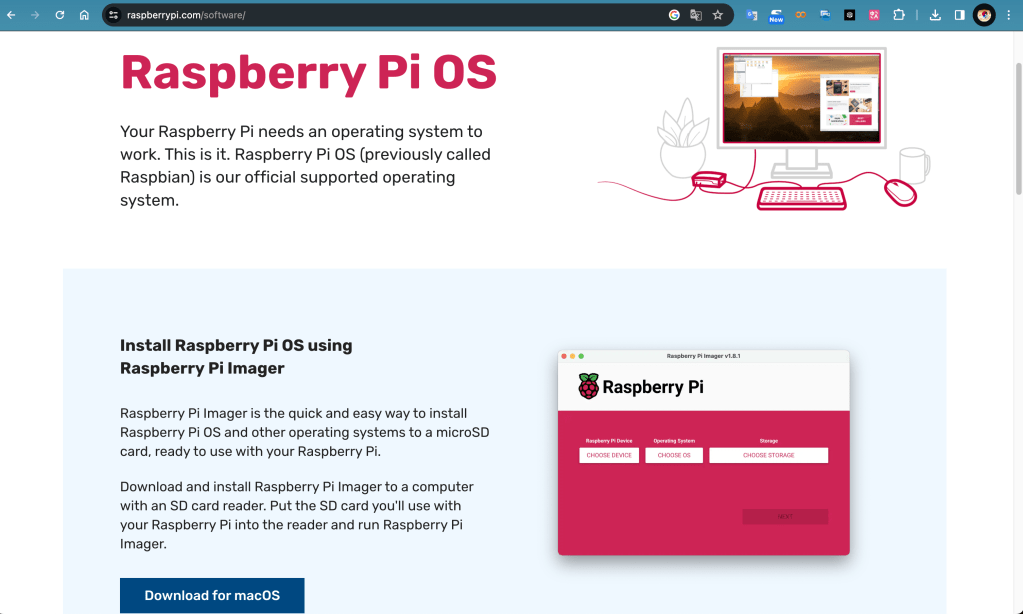
  1. 下載 Raspberry Pi Imager:
  1. 將MicroSD卡或隨身碟或USB隨身硬碟重新格式化為FAT32格式,可以使用 Raspberry Pi Imager 直接處理。
  2. 燒錄作業系統:

選取 RASPBERRY PI 5 、 RASPBERRY PI OS(64-BIT) 以及你的 「MicroSD卡」 或 「隨身碟」 或 「USB隨身硬碟」。

選取「編輯配置」

在GENERAL頁籤可以直接配置使用者名稱及Wi-Fi無線網路

可以勾選啟用SSH

其他選項

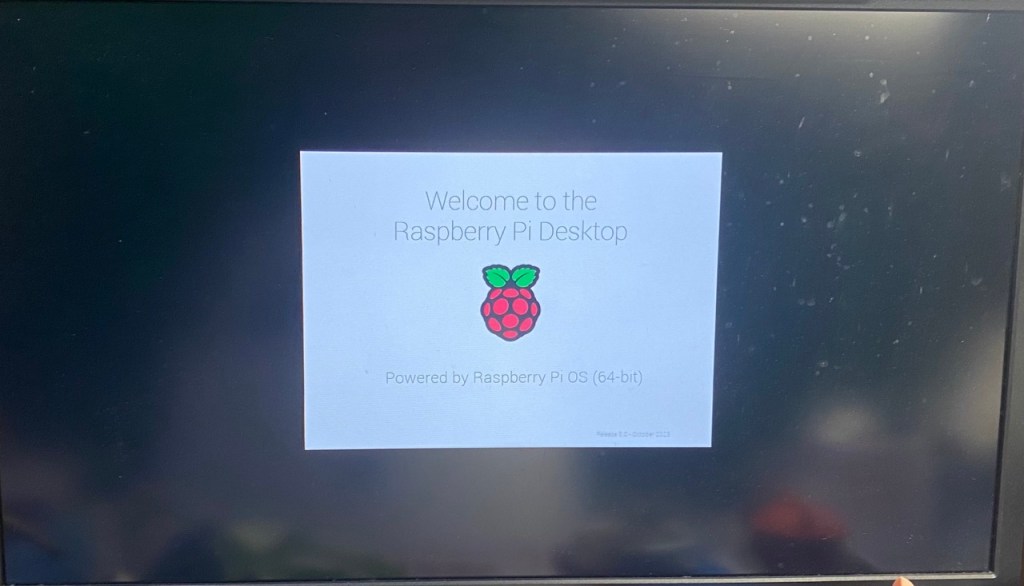
  1. 開機測試

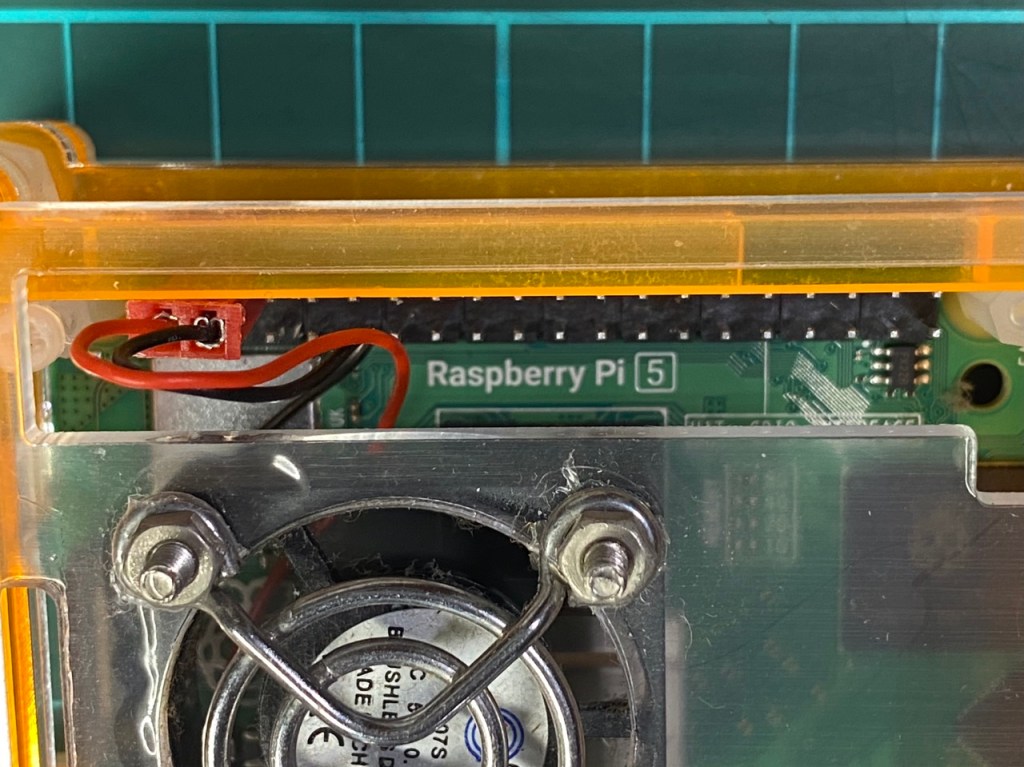
改裝外殼

因為我不喜歡原廠外殼,所以自己拿 舊 Pi 4 的壓克力外殼改裝。
另外,Pi 4 與 Pi 5 網路端子是顛倒,所以剛好把這個積層式外殼顛倒過來就可以用了。
另外,一些開孔不同處,墊了8個M4尼龍螺母,稍微改裝一下,順利把Raspberry Pi 5 安裝上去了。

這樣先頂著用,另外,在物色散熱良好的外殼來安裝。


tags: Raspberry Pi 5 樹莓派

在 macOS Monterey 12.4 環境,使用 Micropython 在 ESP32 SSD1306 顯示 圖形


作者:順哥
email:palmbear@gmail.com

資料來源:
1.image2cpp
2.| ESP32 教學 | MicroPython | I2C OLED Image 顯示圖像 | 209 |
3.SSD1306.py


Table of Contents

[TOC]


前言

測試在 macOS Monterey 12.4 環境,使用 Micropython 在 ESP32 用 SSD1306 OLED 顯示 image 圖形。


Step 1:使用的圖形

在 google網站搜尋一張看起來順眼,個人使用無版權的黑色的熊熊圖(png檔),就用這張圖來做測試,這張圖的原始尺寸為 “981 x 562″。
網頁畫面:


Step 2:將圖形轉換成 byte arrays

因為在macOS上找不到適當軟體可以使用,在 google網站上找到這個
image2ccp

這個網站可以將 image 轉換為 byte arrays(或將您的 byte arrays 轉換回 image),然後給 OLED 顯示出來。
網頁畫面:

  1. 選擇圖形 Select image:
    點選「選擇檔案」,上傳圖形檔。
    網頁畫面:
  2. 圖形設定 image Settings:
    在「畫布尺寸」 Canvas size(s) 欄位中,填入 OLED 的像數規格,我使用 “128 x 64″ ,所以在這裡我們填入 “128″ 及 “64″ ,圖形的原始尺寸為 “981 x 562″,這個網站可以將圖形直接轉成我們需要的大小。
    接下來選擇 “stretch to fill canvas" 「拉伸填充畫布」。
    網頁畫面:
  3. 圖形預覽 Preview:
    隨即就會在「圖形預覽」Preview,看到圖形。
  4. 輸出 Output:
    在「代碼輸出格式」"Code output format" 欄位中,填入 “plain bytes" ,
    接下來在「繪製模式」"Draw mode" 欄位中,填入 “Vertical – 1 bit per pixel" ,
    最後按下 “Generate code" 擷取碼,並將16進位的碼 Copy 下來。
    網頁畫面:

Step 3:測試程式碼

我使用 資料來源2 的程式碼,SSD1306 module 使用 資料來源3 ,並依照自己的ESP32接腳,改用SoftI2C,我的程式碼如下:

from machine import Pin, SoftI2C #從machine 匯入 Pin, SoftI2C
import ssd1306 #匯入 ssd1306模組
import framebuf #匯入 fram3buf模組

i2c = SoftI2C(scl=Pin(22), sda=Pin(21), freq=400000) # 建立 i2c 物件

oled=ssd1306.SSD1306_I2C(128, 64, i2c) #建立 oled096 物件,第 1 個參數與第 2 個參數設定為 OLED 模組的像素,第 3 個參數為 I2C 的物件名稱

# img64 是一個 bytearrays 的列表(List) 
img64 = [
0xff, 0xff, 0xff, 0xff, 0xff, 0xff, 0xff, 0xff, 0xff, 0xff, 0xff, 0xff, 0xff, 0xff, 0x7f, 0x7f, 
0x3f, 0x1f, 0x1f, 0x0f, 0x07, 0x07, 0x07, 0x03, 0x03, 0x01, 0x01, 0x01, 0x01, 0x01, 0x00, 0x00, 
0x00, 0x00, 0x00, 0x00, 0x00, 0x00, 0x00, 0x00, 0x00, 0x00, 0x00, 0x00, 0x01, 0x01, 0x01, 0x01, 
0x01, 0x01, 0x01, 0x01, 0x03, 0x03, 0x03, 0x03, 0x03, 0x03, 0x03, 0x03, 0x03, 0x03, 0x07, 0x07, 
0x07, 0x07, 0x07, 0x07, 0x07, 0x07, 0x07, 0x07, 0x07, 0x03, 0x03, 0x03, 0x01, 0x01, 0x01, 0x01, 
0x01, 0x01, 0x01, 0x01, 0x03, 0x03, 0x03, 0x03, 0x07, 0x07, 0x07, 0x07, 0x0f, 0x0f, 0x0f, 0x1f, 
0x1f, 0x1f, 0x1f, 0x1f, 0x1f, 0x1f, 0x1f, 0x1f, 0x1f, 0x3f, 0x3f, 0x3f, 0x3f, 0x3f, 0x7f, 0x7f, 
0x7f, 0x3f, 0x3f, 0x7f, 0xff, 0xff, 0xff, 0xff, 0xff, 0xff, 0xff, 0xff, 0xff, 0xff, 0xff, 0xff, 
0xff, 0xff, 0xff, 0xff, 0xff, 0xff, 0xff, 0xff, 0x3f, 0x1f, 0x07, 0x03, 0x01, 0x00, 0x00, 0x00, 
0x00, 0x00, 0x00, 0x00, 0x00, 0x00, 0x00, 0x00, 0x00, 0x00, 0x00, 0x00, 0x00, 0x00, 0x00, 0x00, 
0x00, 0x00, 0x00, 0x00, 0x00, 0x01, 0x01, 0x03, 0x03, 0x07, 0x2f, 0x7f, 0xff, 0xff, 0xff, 0xff, 
0xff, 0xff, 0xff, 0xff, 0xff, 0x3f, 0x07, 0x00, 0x00, 0x00, 0x00, 0x00, 0x00, 0x00, 0x00, 0x00, 
0x00, 0x00, 0x00, 0x00, 0x00, 0x00, 0x00, 0x00, 0x00, 0x00, 0x00, 0x00, 0x00, 0x00, 0x00, 0x00, 
0x00, 0x00, 0x00, 0x00, 0x00, 0x00, 0x00, 0x00, 0x00, 0x00, 0x00, 0x00, 0x00, 0x81, 0xc3, 0xf7, 
0xff, 0xff, 0xff, 0xff, 0xc1, 0x00, 0x00, 0x00, 0x00, 0x00, 0x00, 0x00, 0x00, 0x00, 0x00, 0x00, 
0x00, 0x00, 0x00, 0x00, 0x00, 0x00, 0x00, 0x00, 0x00, 0x00, 0x00, 0x00, 0x00, 0x00, 0x00, 0x00, 
0x00, 0x00, 0x00, 0x00, 0x08, 0x38, 0xf8, 0xf8, 0xfc, 0xfc, 0xfc, 0xfc, 0xfc, 0xfc, 0xfe, 0xfe, 
0xfe, 0xfe, 0xfe, 0xff, 0xff, 0xff, 0xff, 0xff, 0xfe, 0xfe, 0xff, 0xff, 0xff, 0xff, 0xff, 0xff, 
0xff, 0xff, 0xff, 0xff, 0xff, 0xfe, 0xfc, 0xfc, 0x3c, 0x00, 0x00, 0x00, 0x00, 0x00, 0x00, 0x00, 
0x00, 0x00, 0x00, 0x00, 0x00, 0x00, 0x00, 0x00, 0x00, 0x00, 0x00, 0x00, 0x00, 0x00, 0x00, 0x00, 
0x00, 0x00, 0x00, 0x00, 0x80, 0x80, 0x80, 0x80, 0x80, 0x80, 0x80, 0x80, 0x80, 0x80, 0x80, 0x80, 
0x80, 0x80, 0x80, 0xc0, 0xc0, 0x80, 0xc0, 0xc0, 0xc0, 0xe0, 0xe0, 0xe0, 0x20, 0x00, 0x00, 0x00, 
0x00, 0x00, 0x00, 0x00, 0x00, 0x00, 0x00, 0x00, 0x00, 0x00, 0x00, 0x00, 0x00, 0x00, 0x00, 0x00, 
0x00, 0x80, 0xc0, 0xf0, 0x80, 0x00, 0x00, 0x00, 0x00, 0x00, 0x00, 0x00, 0x00, 0x00, 0x00, 0x00, 
0x00, 0x00, 0x00, 0x00, 0x00, 0x00, 0x01, 0x03, 0x0f, 0x3f, 0x7f, 0xff, 0xff, 0xff, 0xff, 0xff, 
0xff, 0xff, 0xff, 0xff, 0xff, 0xff, 0xff, 0xff, 0xff, 0xff, 0xff, 0xff, 0xff, 0xff, 0xff, 0xff, 
0xff, 0xff, 0x3f, 0x1f, 0x0f, 0x07, 0x03, 0x00, 0x00, 0x00, 0x00, 0x00, 0x00, 0x00, 0x00, 0x00, 
0x00, 0x00, 0x00, 0x00, 0x00, 0x00, 0x00, 0x00, 0x00, 0x00, 0x00, 0x00, 0x00, 0x00, 0x00, 0x00, 
0x00, 0x00, 0xe0, 0xfe, 0xff, 0xff, 0xff, 0xff, 0xff, 0xff, 0xff, 0xff, 0xff, 0xff, 0xff, 0xff, 
0xff, 0xff, 0xff, 0xff, 0xff, 0xff, 0xff, 0xff, 0xff, 0xff, 0xff, 0x1f, 0x02, 0x00, 0x00, 0x00, 
0x00, 0x00, 0x00, 0x00, 0x00, 0x00, 0x00, 0x00, 0x00, 0x00, 0x00, 0x00, 0x00, 0x80, 0xf0, 0xfc, 
0xfc, 0xff, 0xff, 0xff, 0xff, 0xff, 0xfc, 0xf8, 0xf8, 0xf0, 0xe0, 0xc0, 0x80, 0x00, 0x00, 0x00, 
0x00, 0x00, 0x00, 0x00, 0x00, 0x00, 0x00, 0x00, 0x00, 0x00, 0x00, 0x01, 0x03, 0x07, 0x1f, 0x3f, 
0x7f, 0x3f, 0x7f, 0x7f, 0x7f, 0xff, 0xff, 0xff, 0xff, 0xff, 0xff, 0xff, 0xff, 0xff, 0xff, 0xff, 
0xc1, 0x80, 0x00, 0x00, 0x00, 0x00, 0x00, 0x00, 0x00, 0x00, 0x00, 0x00, 0x00, 0x00, 0x80, 0xc0, 
0xc0, 0xe0, 0xf0, 0xf8, 0x00, 0x00, 0x00, 0x00, 0x00, 0x00, 0x00, 0x00, 0x00, 0x00, 0x00, 0x00, 
0x00, 0x00, 0xff, 0xff, 0xff, 0xff, 0xff, 0xff, 0xff, 0xff, 0xff, 0xff, 0xff, 0xff, 0xff, 0xff, 
0xff, 0xff, 0xff, 0xff, 0xff, 0xff, 0xff, 0xff, 0xff, 0xff, 0xff, 0x01, 0x00, 0x00, 0x00, 0x00, 
0x00, 0x00, 0x00, 0x00, 0x00, 0x00, 0x00, 0x00, 0x00, 0x00, 0xc0, 0xfc, 0xfe, 0xff, 0xff, 0xff, 
0xff, 0xff, 0xff, 0xff, 0xff, 0xff, 0xff, 0xff, 0xff, 0xff, 0xff, 0xff, 0xff, 0xff, 0xff, 0xff, 
0xfe, 0xf8, 0xf8, 0xf8, 0xf8, 0xf0, 0xf8, 0xf8, 0xf0, 0xf0, 0xf0, 0xf0, 0xf0, 0xf0, 0xf0, 0xf0, 
0xf0, 0xf0, 0xf0, 0xf0, 0xf8, 0xfc, 0xfd, 0xff, 0xff, 0xff, 0xff, 0xff, 0xff, 0xff, 0xff, 0xff, 
0xff, 0xff, 0xfc, 0x80, 0x00, 0x00, 0x00, 0x00, 0x00, 0x00, 0x00, 0x00, 0x00, 0x00, 0x01, 0x03, 
0x87, 0x9f, 0xff, 0xff, 0xfc, 0xf8, 0xf8, 0xf0, 0xf0, 0xf0, 0xf0, 0xf0, 0xf0, 0xf0, 0xf0, 0xf0, 
0xf0, 0xf0, 0xf0, 0xf8, 0xf9, 0xff, 0xff, 0xff, 0xff, 0xff, 0xff, 0xff, 0xff, 0xff, 0xff, 0xff, 
0xff, 0xff, 0xff, 0xff, 0xff, 0xff, 0xff, 0xff, 0xff, 0xff, 0xfd, 0xf0, 0xf0, 0xe0, 0xe0, 0xe0, 
0xe0, 0xe0, 0xe0, 0xe0, 0xe0, 0xe0, 0xe0, 0xc0, 0xc0, 0xc0, 0xc0, 0xc1, 0xc1, 0xc1, 0xc3, 0xc3, 
0xe7, 0xdf, 0xff, 0xff, 0xff, 0xff, 0xff, 0xff, 0xff, 0xff, 0xff, 0xff, 0xff, 0xff, 0xff, 0xff, 
0xff, 0xff, 0xff, 0xff, 0xff, 0xff, 0xff, 0xff, 0xff, 0xff, 0xff, 0xff, 0xff, 0xff, 0xff, 0xff, 
0xff, 0xff, 0xff, 0xff, 0xff, 0xff, 0xff, 0xff, 0xff, 0xff, 0xff, 0xff, 0xff, 0xff, 0xff, 0xff
]

img064b = bytearray(img64)  # 將 img64 轉成 bytearray 型態,並取名 img64b
imgbuf=framebuf.FrameBuffer(img064b,128,64,framebuf.MONO_VLSB) #framebuf 第 1 個參數為影像資料的 bytearray名稱,第 2、3 個參數是影像的寬度與高度,第 4 個參數是像素形式與排列,MONO_VLSB 是指 單色+垂直+LSB
oled.blit(imgbuf, 0, 0) #blit方法,是將imgbuf 物件,由指定的 X,Y 位置,依序開始填入 OLED 記憶體
oled.invert(1) #以反白螢幕方式顯示圖形畫面
oled.show() #顯示螢幕畫面

程式說明

  1. 因為 framebuf 使用的資料型態是 bytearray,所以將 img64 轉成 bytearray 型態,並取名 img64b。
  2. 我們在轉檔時時是採用單色與垂直方向排列(Vertical)的方式存檔,所以預設轉出陣列就是 1btye 會有 8 像素,資料排列也就照著直線方式一條一條轉換,img64 原始資料共有 1024 個 bytes,換算成像素也就是1024×8=8192個像素,與我們OLED 的像素128*64=8192 Pixel 是相符的。
  3. mgbuf 為新建立的 framebuf 物件,framebuf 第 1 個參數為影像資料的 byte 序列,第 2、3 個參數分別為影像的寬度與高度,第 4 個參數就是像素形式與排列,MONO_VLSB 是指 單色+垂直+LSB(如果是其他形式可以填入framebuf.MONO_HLSB、framebuf.RGB565、framebuf.GS4_HMSB等。
  4. blit 這個方法也是源自 framebuf,將建立好的 imgbuf 物件,由指定的 X,Y 位置,依序開始填入 OLED 記憶體內。
    Micropython framebuf 模組的官方說明

成果

完成畫面:

我使用的硬體:

測試影片


tags: Micropython ESP32 Macbook pro 2021 macOS 12.4 Monterey

MacBook Pro Monterey,使用 Arduino IDE 燒錄 ESP8266 會出現燒錄錯誤 “pyserial or esptool directories not found next to this upload.py tool.”

資料來源:https://www.tweaking4all.com/forum/arduino/macos-aruino-ide-how-to-fix-pyserial-or-esptool-directories-not-found-next-to-this-upload-py-tool-error-esp8266/

錯誤訊息如下:

pyserial or esptool directories not found next to this upload.py tool.
An error occurred while uploading the sketch

macOS版本:Monterey 12.3.1

ESP8266 Core version:2.6.3

aArduino IDE version:1.8.19

解決方法:

  1. 打開這個檔案
    file~/Library/Arduino15/packages/esp8266/hardware/esp8266/2.6.3/tools/pyserial/serial/tools/list_ports_osx.py
  2. 註釋掉這兩行
iokit = ctypes.cdll.LoadLibrary('/System/Library/Frameworks/IOKit.framework/IOKit')    
cf = ctypes.cdll.LoadLibrary('/System/Library/Frameworks/CoreFoundation.framework/CoreFoundation')

加入這兩行:

iokit = ctypes.cdll.LoadLibrary('/System/Library/Frameworks/IOKit.framework/IOKit')
cf = ctypes.cdll.LoadLibrary('/System/Library/Frameworks/CoreFoundation.framework/CoreFoundation')

修改完成後,程式碼應該像下面這樣子才對:

from serial.tools import list_ports_common

#iokit = ctypes.cdll.LoadLibrary(ctypes.util.find_library('IOKit'))
#cf = ctypes.cdll.LoadLibrary(ctypes.util.find_library('CoreFoundation'))
iokit = ctypes.cdll.LoadLibrary('/System/Library/Frameworks/IOKit.framework/IOKit')
cf = ctypes.cdll.LoadLibrary('/System/Library/Frameworks/CoreFoundation.framework/CoreFoundation')

kIOMasterPortDefault = ctypes.c_void_p.in_dll(iokit, "kIOMasterPortDefault")
kCFAllocatorDefault = ctypes.c_void_p.in_dll(cf, "kCFAllocatorDefault")
這樣就可以正常燒錄了!
Done!

2021 Macbook Pro 14吋 安裝 Arduino IDE 1.18.9 在 ESP32 發生 「exec: “python" : executable file not found in $PATH」錯誤

資料來源:
1. https://forum.arduino.cc/t/esp32-problem-with-compilation-on-macos-12-3-monterey/969771
2. https://forum.arduino.cc/t/mac-os-update-killed-esp32-sketch/969580/8

作者:順哥
email:palmbear@gmail.com

Table of Contents

[TOC]

前言

最近新購買2021 Macbook Pro 14吋 使用 Arduino IDE 1.18.9 在ESP32開發板上傳程式碼時,發生 「exec: “python": executable file not found in $PATH’」錯誤。上網查了發現解決方法,留下紀錄,以免後續再碰到時,不知如何解決。

問題

ESP32: problem with compilation on MacOS 12.3 Monterey

問題頁面

網頁畫面:

解決方法
網頁畫面:


我的解決方法

我按照網頁上的解決方法,更改
/Users/palmbearhung/Library/Arduino15/packages/esp32/hardware/esp32/1.0.6/platform.txt 文件內容:

# From
tools.gen_esp32part.cmd=python "{runtime.platform.path}/tools/gen_esp32part.py"

# To
tools.gen_esp32part.cmd=/usr/local/bin/python "{runtime.platform.path}/tools/gen_esp32part.py"

但是還時不能上傳!!!

Arduino IDE跟我說「no such file or directory」

將 python 更改為 python3 也不行!!!

這倒底是怎麼一回事呢?

後來把整個文章看完,才知道也有人跟我一樣。

但是有解決方法,就是:

找出 python3放在電腦的哪個位置?

使用 which python3 指令,找出 python3 的所在位置。

原來我的 python3 位置跟他們的不一樣!

更改完成後,儲存檔案。

再次上傳檔案,成功!!!


tags: Arduino ESP32 Macbook pro 2021 macOS 12.3.1 Monterey

在Arduino 使用ESP32與網路同步時間,獲取日期及時間

作者:順哥
email:palmbear@gmail.com

資料來源:
https://randomnerdtutorials.com/esp32-date-time-ntp-client-server-arduino/

Table of Contents

[TOC]

前言

如何使用 ESP32 和 Arduino IDE 從 NTP Server 同步日期和時間?

獲取日期和時間在Aiot應用中很有用。要從 NTP Server獲取時間,ESP32需要連接 Internet,而且不需要額外的硬體(如 RTC 時鐘)。


NTP(Network Time Protocol, 網路時間協議)

NTP想要將所有參與電腦的協調世界時(UTC)時間同步到ms的誤差內。NTP通常可以在internet保持幾十毫秒的誤差,並且在理想的區域網路環境中可以實現超過1毫秒的精度。

MCU與NTP Server同步示意圖:
資料來源:randomnerdtutorials.com


硬體

  1. AI Thinker ESP32-S(NODMCU-32 V1.2)
  2. ESP32擴展板
  3. USB充電傳輸線

軟體

  1. Arduino IDE 2.0.0 RC5 for MacOS:
  2. 需要的Library:

<WiFi.h>
<time.h>


程式碼

  1. 使用 ESP32 加上 ESP32擴展板,程式碼如下:
/*
  Rui Santos
  Complete project details at https://RandomNerdTutorials.com/esp32-date-time-ntp-client-server-arduino/

  Permission is hereby granted, free of charge, to any person obtaining a copy
  of this software and associated documentation files.

  The above copyright notice and this permission notice shall be included in all
  copies or substantial portions of the Software.
*/

#include <WiFi.h>
#include <time.h>

const char* ssid     = "Your wifi ssid";
const char* password = "your password";

const char* ntpServer = "time.google.com";
const long  gmtOffset_sec = 28800; //台灣時區+8hr,28800=8*60*60
const int   daylightOffset_sec = 0;  //台灣無日光節約時間

void setup(){
  Serial.begin(115200);

  // Connect to Wi-Fi
  Serial.print("Connecting to ");
  Serial.println(ssid);
  WiFi.begin(ssid, password);
  while (WiFi.status() != WL_CONNECTED) {
    delay(500);
    Serial.print(".");
  }
  Serial.println("");
  Serial.println("WiFi connected.");

  // Init and get the time
  configTime(gmtOffset_sec, daylightOffset_sec, ntpServer);
  printLocalTime();

  //disconnect WiFi as it's no longer needed
  WiFi.disconnect(true);
  WiFi.mode(WIFI_OFF);
}

void loop(){
  delay(5000);
  printLocalTime();
}

void printLocalTime(){
  struct tm timeinfo;
  if(!getLocalTime(&timeinfo)){
    Serial.println("Failed to obtain time");
    return;
  }
  Serial.println(&timeinfo, "%A, %Y %m %d %H:%M:%S"); //%A-Sunday,%Y-2022,%m-3,%d-27,%H:%M:%S-21:10:02
  Serial.println(&timeinfo, "%A, %B %d %Y %H:%M:%S"); //%A-Sunday,%B-March,%d-27,%Y-2022,%H:%M:%S-21:10:02
  Serial.print("Day of week: "); //顯示英文 星期
  Serial.println(&timeinfo, "%A"); //Day of week: Sunday
  Serial.print("Month: "); //顯示英文 月份
  Serial.println(&timeinfo, "%B"); //Month: March
  Serial.print("Day of Month: "); //顯示英文 日
  Serial.println(&timeinfo, "%d"); //Day of Month: 27
  Serial.print("Year: "); //顯示英文 西元年
  Serial.println(&timeinfo, "%Y"); //Year: 2022
  Serial.print("Hour: "); //顯示英文 時 24小時制
  Serial.println(&timeinfo, "%H"); //Hour: 21
  Serial.print("Hour (12 hour format): "); //顯示英文 時 12小時制
  Serial.println(&timeinfo, "%I"); //Hour (12 hour format): 9
  Serial.print("Minute: "); //顯示英文 分
  Serial.println(&timeinfo, "%M"); //Minute: 01
  Serial.print("Second: "); //顯示英文 秒
  Serial.println(&timeinfo, "%S"); //Second: 24

  Serial.println("Time variables"); //時間變數Time variables
  char timeHour[3]; //宣告時間小時變數:timeHour
  strftime(timeHour,3, "%H", &timeinfo);
  Serial.println(timeHour); //顯示時數:22
  char timeWeekDay[10]; //宣告時間星期變數:timeWeekDay
  strftime(timeWeekDay,10, "%A", &timeinfo);
  Serial.println(timeWeekDay); //顯示星期:Sunday
  Serial.println("*****************************************************");

}

tags: NTP Arduino ESP32 ESP8266 Wio terminal

ESP32輔助板背面I2C使用方法

資料來源:

1.https://youyouyou.pixnet.net/blog/post/121069748-esp32-x-nbiot-%e8%bc%94%e5%8a%a9%e7%89%88-%e8%83%8c%e9%9d%a2i2c-lcd?pixfrom=related
2.IoT物聯網應用:使用 ESP32 開發版與 Arduino C 程式語言,尤濬哲老師著

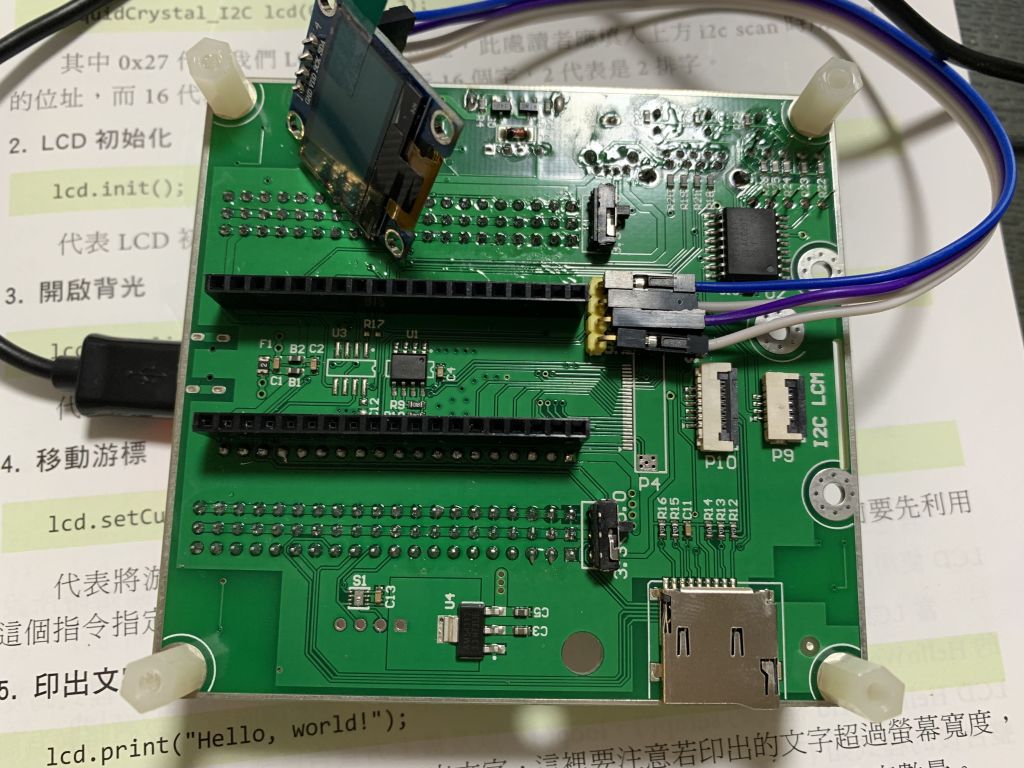
本文實作尤老師製作的「ESP32輔助板」背面 I2C 使用方法,背面的I2C為附加的PCF85741 I2C晶片,因此使用的腳位是 26 ,27 而非 21 , 22。

要使用ESP32輔助板背面的 I2C 介面,必須將 SDA 設為 GPIO 26,SCL 設為 GPIO 27。每個 I2C 裝置都會有一個位址,宣告錯誤的位址是不會有任何反應的,所以必須先做一次 I2C 掃描,取得正確位置。

我們可以使用下面程式碼掃描 I2C 的位址:

#include <Wire.h>

void setup()
{
  Serial.begin (115200);  
  Wire.begin (26, 27);   // sda=GPIO_26, scl=GPIO_27
}

void Scanner ()
{
  Serial.println ();
  Serial.println ("I2C scanner. Scanning ...");
  byte count = 0;

  Wire.begin();
  for (byte i = 8; i < 120; i++)
  {
    Wire.beginTransmission (i); // Begin I2C transmission Address (i)
    if (Wire.endTransmission () == 0) //0=success(ACK response) 
    {
      Serial.print ("Found address: ");
      Serial.print (i, DEC);
      Serial.print (" (0x");
      Serial.print (i, HEX);     // PCF8574 7 bit address
      Serial.println (")");
      count++;
    }
  }
  Serial.print ("Found ");      
  Serial.print (count, DEC);        // numbers of devices
  Serial.println (" device(s).");
}

void loop()
{
  Scanner ();
  delay (5000);
}

我接上一個 0.96吋的 OLED 螢幕,掃描到的 I2C 的位置有3個,分別是

I2C scanner. Scanning …
Found address: 32 (0x20)
Found address: 60 (0x3C)
Found address: 80 (0x50)
Found 3 device(s).

I2C 位址掃描結果

用 Arduino 打開 AdafruitSSD1306 範例檔,我參考網路上資源加上了一些文字顯示,程式碼如下:

/**************************************************************************
 This is an example for our Monochrome OLEDs based on SSD1306 drivers

 Pick one up today in the adafruit shop!
 ------> http://www.adafruit.com/category/63_98

 This example is for a 128x64 pixel display using I2C to communicate
 3 pins are required to interface (two I2C and one reset).

 Adafruit invests time and resources providing this open
 source code, please support Adafruit and open-source
 hardware by purchasing products from Adafruit!

 Written by Limor Fried/Ladyada for Adafruit Industries,
 with contributions from the open source community.
 BSD license, check license.txt for more information
 All text above, and the splash screen below must be
 included in any redistribution.
 **************************************************************************/

#include <SPI.h>
#include <Wire.h>
#include <Adafruit_GFX.h>
#include <Adafruit_SSD1306.h>

#define SCREEN_WIDTH 128 // OLED display width, in pixels
#define SCREEN_HEIGHT 64 // OLED display height, in pixels

// Declaration for an SSD1306 display connected to I2C (SDA, SCL pins)
// The pins for I2C are defined by the Wire-library. 
// On an arduino UNO:       A4(SDA), A5(SCL)
// On an arduino MEGA 2560: 20(SDA), 21(SCL)
// On an arduino LEONARDO:   2(SDA),  3(SCL), ...
#define OLED_RESET     4 // Reset pin # (or -1 if sharing Arduino reset pin)
#define SCREEN_ADDRESS 0x3C ///這裡要設定Address為 0x3C
Adafruit_SSD1306 display(SCREEN_WIDTH, SCREEN_HEIGHT, &Wire, OLED_RESET);

#define NUMFLAKES     10 // Number of snowflakes in the animation example

#define LOGO_HEIGHT   16
#define LOGO_WIDTH    16
static const unsigned char PROGMEM logo_bmp[] =
{ 0b00000000, 0b11000000,
  0b00000001, 0b11000000,
  0b00000001, 0b11000000,
  0b00000011, 0b11100000,
  0b11110011, 0b11100000,
  0b11111110, 0b11111000,
  0b01111110, 0b11111111,
  0b00110011, 0b10011111,
  0b00011111, 0b11111100,
  0b00001101, 0b01110000,
  0b00011011, 0b10100000,
  0b00111111, 0b11100000,
  0b00111111, 0b11110000,
  0b01111100, 0b11110000,
  0b01110000, 0b01110000,
  0b00000000, 0b00110000 };

void setup() {
  Serial.begin (115200);  
  Wire.begin (26, 27);   // sda=GPIO_26, scl=GPIO_27,設I2C腳位為26,27
  // SSD1306_SWITCHCAPVCC = generate display voltage from 3.3V internally
  if(!display.begin(SSD1306_SWITCHCAPVCC, SCREEN_ADDRESS)) {
    Serial.println(F("SSD1306 allocation failed"));
    for(;;); // Don't proceed, loop forever
  }

  // Show initial display buffer contents on the screen --
  // the library initializes this with an Adafruit splash screen.
  display.display();
  delay(2000); // Pause for 2 seconds

  // Clear the buffer
  display.clearDisplay();

  // Draw a single pixel in white
  display.drawPixel(10, 10, SSD1306_WHITE);

  // Show the display buffer on the screen. You MUST call display() after
  // drawing commands to make them visible on screen!
  display.display();
  delay(2000);
  // display.display() is NOT necessary after every single drawing command,
  // unless that's what you want...rather, you can batch up a bunch of
  // drawing operations and then update the screen all at once by calling
  // display.display(). These examples demonstrate both approaches...

  testdrawline();      // Draw many lines

  testdrawrect();      // Draw rectangles (outlines)

  testfillrect();      // Draw rectangles (filled)

  testdrawcircle();    // Draw circles (outlines)

  testfillcircle();    // Draw circles (filled)

  testdrawroundrect(); // Draw rounded rectangles (outlines)

  testfillroundrect(); // Draw rounded rectangles (filled)

  testdrawtriangle();  // Draw triangles (outlines)

  testfilltriangle();  // Draw triangles (filled)

  testdrawchar();      // Draw characters of the default font

  testdrawstyles();    // Draw 'stylized' characters

  testscrolltext();    // Draw scrolling text

  testdrawbitmap();    // Draw a small bitmap image

  // Invert and restore display, pausing in-between
  display.invertDisplay(true);
  delay(1000);
  display.invertDisplay(false);
  delay(1000);

  testanimate(logo_bmp, LOGO_WIDTH, LOGO_HEIGHT); // Animate bitmaps
}

void loop() {
  display.setTextColor(WHITE);                           //設定顯示文字的顏色
  display.setTextSize(1);                                        //設定第1行文字的大小為1
  display.setCursor(0,0);                                        //設定第1行文字在oled上顯示的座標
  display.println("Hello, world!");                         //設定第1行顯示的文字

  display.setTextSize(2);                                        //設定第2行文字的大小為2
  display.setCursor(0,15);                                      //設定第2行文字在oled上顯示的座標
  display.println("First");                                       //設定第2行顯示的文字

  display.setTextSize(3);                                        //設定第3行文字的大小為3
  display.setCursor(0,40);                                      //設定第3行文字在oled上顯示的座標
  display.println("Second");                                  //設定第3行顯示的文字

  display.display();                                                 //顯示資料緩衝區內的資料
  delay(2000);
  display.clearDisplay();                                        //清除資料緩衝區內的資料
}

void testdrawline() {
  int16_t i;

  display.clearDisplay(); // Clear display buffer

  for(i=0; i<display.width(); i+=4) {
    display.drawLine(0, 0, i, display.height()-1, SSD1306_WHITE);
    display.display(); // Update screen with each newly-drawn line
    delay(1);
  }
  for(i=0; i<display.height(); i+=4) {
    display.drawLine(0, 0, display.width()-1, i, SSD1306_WHITE);
    display.display();
    delay(1);
  }
  delay(250);

  display.clearDisplay();

  for(i=0; i<display.width(); i+=4) {
    display.drawLine(0, display.height()-1, i, 0, SSD1306_WHITE);
    display.display();
    delay(1);
  }
  for(i=display.height()-1; i>=0; i-=4) {
    display.drawLine(0, display.height()-1, display.width()-1, i, SSD1306_WHITE);
    display.display();
    delay(1);
  }
  delay(250);

  display.clearDisplay();

  for(i=display.width()-1; i>=0; i-=4) {
    display.drawLine(display.width()-1, display.height()-1, i, 0, SSD1306_WHITE);
    display.display();
    delay(1);
  }
  for(i=display.height()-1; i>=0; i-=4) {
    display.drawLine(display.width()-1, display.height()-1, 0, i, SSD1306_WHITE);
    display.display();
    delay(1);
  }
  delay(250);

  display.clearDisplay();

  for(i=0; i<display.height(); i+=4) {
    display.drawLine(display.width()-1, 0, 0, i, SSD1306_WHITE);
    display.display();
    delay(1);
  }
  for(i=0; i<display.width(); i+=4) {
    display.drawLine(display.width()-1, 0, i, display.height()-1, SSD1306_WHITE);
    display.display();
    delay(1);
  }

  delay(2000); // Pause for 2 seconds
}

void testdrawrect(void) {
  display.clearDisplay();

  for(int16_t i=0; i<display.height()/2; i+=2) {
    display.drawRect(i, i, display.width()-2*i, display.height()-2*i, SSD1306_WHITE);
    display.display(); // Update screen with each newly-drawn rectangle
    delay(1);
  }

  delay(2000);
}

void testfillrect(void) {
  display.clearDisplay();

  for(int16_t i=0; i<display.height()/2; i+=3) {
    // The INVERSE color is used so rectangles alternate white/black
    display.fillRect(i, i, display.width()-i*2, display.height()-i*2, SSD1306_INVERSE);
    display.display(); // Update screen with each newly-drawn rectangle
    delay(1);
  }

  delay(2000);
}

void testdrawcircle(void) {
  display.clearDisplay();

  for(int16_t i=0; i<max(display.width(),display.height())/2; i+=2) {
    display.drawCircle(display.width()/2, display.height()/2, i, SSD1306_WHITE);
    display.display();
    delay(1);
  }

  delay(2000);
}

void testfillcircle(void) {
  display.clearDisplay();

  for(int16_t i=max(display.width(),display.height())/2; i>0; i-=3) {
    // The INVERSE color is used so circles alternate white/black
    display.fillCircle(display.width() / 2, display.height() / 2, i, SSD1306_INVERSE);
    display.display(); // Update screen with each newly-drawn circle
    delay(1);
  }

  delay(2000);
}

void testdrawroundrect(void) {
  display.clearDisplay();

  for(int16_t i=0; i<display.height()/2-2; i+=2) {
    display.drawRoundRect(i, i, display.width()-2*i, display.height()-2*i,
      display.height()/4, SSD1306_WHITE);
    display.display();
    delay(1);
  }

  delay(2000);
}

void testfillroundrect(void) {
  display.clearDisplay();

  for(int16_t i=0; i<display.height()/2-2; i+=2) {
    // The INVERSE color is used so round-rects alternate white/black
    display.fillRoundRect(i, i, display.width()-2*i, display.height()-2*i,
      display.height()/4, SSD1306_INVERSE);
    display.display();
    delay(1);
  }

  delay(2000);
}

void testdrawtriangle(void) {
  display.clearDisplay();

  for(int16_t i=0; i<max(display.width(),display.height())/2; i+=5) {
    display.drawTriangle(
      display.width()/2  , display.height()/2-i,
      display.width()/2-i, display.height()/2+i,
      display.width()/2+i, display.height()/2+i, SSD1306_WHITE);
    display.display();
    delay(1);
  }

  delay(2000);
}

void testfilltriangle(void) {
  display.clearDisplay();

  for(int16_t i=max(display.width(),display.height())/2; i>0; i-=5) {
    // The INVERSE color is used so triangles alternate white/black
    display.fillTriangle(
      display.width()/2  , display.height()/2-i,
      display.width()/2-i, display.height()/2+i,
      display.width()/2+i, display.height()/2+i, SSD1306_INVERSE);
    display.display();
    delay(1);
  }

  delay(2000);
}

void testdrawchar(void) {
  display.clearDisplay();

  display.setTextSize(1);      // Normal 1:1 pixel scale
  display.setTextColor(SSD1306_WHITE); // Draw white text
  display.setCursor(0, 0);     // Start at top-left corner
  display.cp437(true);         // Use full 256 char 'Code Page 437' font

  // Not all the characters will fit on the display. This is normal.
  // Library will draw what it can and the rest will be clipped.
  for(int16_t i=0; i<256; i++) {
    if(i == '\n') display.write(' ');
    else          display.write(i);
  }

  display.display();
  delay(2000);
}

void testdrawstyles(void) {
  display.clearDisplay();

  display.setTextSize(1);             // Normal 1:1 pixel scale
  display.setTextColor(SSD1306_WHITE);        // Draw white text
  display.setCursor(0,0);             // Start at top-left corner
  display.println(F("Hello, world!"));

  display.setTextColor(SSD1306_BLACK, SSD1306_WHITE); // Draw 'inverse' text
  display.println(3.141592);

  display.setTextSize(2);             // Draw 2X-scale text
  display.setTextColor(SSD1306_WHITE);
  display.print(F("0x")); display.println(0xDEADBEEF, HEX);

  display.display();
  delay(2000);
}

void testscrolltext(void) {
  display.clearDisplay();

  display.setTextSize(2); // Draw 2X-scale text
  display.setTextColor(SSD1306_WHITE);
  display.setCursor(10, 0);
  display.println(F("scroll"));
  display.display();      // Show initial text
  delay(100);

  // Scroll in various directions, pausing in-between:
  display.startscrollright(0x00, 0x0F);
  delay(2000);
  display.stopscroll();
  delay(1000);
  display.startscrollleft(0x00, 0x0F);
  delay(2000);
  display.stopscroll();
  delay(1000);
  display.startscrolldiagright(0x00, 0x07);
  delay(2000);
  display.startscrolldiagleft(0x00, 0x07);
  delay(2000);
  display.stopscroll();
  delay(1000);
}

void testdrawbitmap(void) {
  display.clearDisplay();

  display.drawBitmap(
    (display.width()  - LOGO_WIDTH ) / 2,
    (display.height() - LOGO_HEIGHT) / 2,
    logo_bmp, LOGO_WIDTH, LOGO_HEIGHT, 1);
  display.display();
  delay(1000);
}

#define XPOS   0 // Indexes into the 'icons' array in function below
#define YPOS   1
#define DELTAY 2

void testanimate(const uint8_t *bitmap, uint8_t w, uint8_t h) {
  int8_t f, icons[NUMFLAKES][3];

  // Initialize 'snowflake' positions
  for(f=0; f< NUMFLAKES; f++) {
    icons[f][XPOS]   = random(1 - LOGO_WIDTH, display.width());
    icons[f][YPOS]   = -LOGO_HEIGHT;
    icons[f][DELTAY] = random(1, 6);
    Serial.print(F("x: "));
    Serial.print(icons[f][XPOS], DEC);
    Serial.print(F(" y: "));
    Serial.print(icons[f][YPOS], DEC);
    Serial.print(F(" dy: "));
    Serial.println(icons[f][DELTAY], DEC);
  }

  for(;;) { // Loop forever...
    display.clearDisplay(); // Clear the display buffer

    // Draw each snowflake:
    for(f=0; f< NUMFLAKES; f++) {
      display.drawBitmap(icons[f][XPOS], icons[f][YPOS], bitmap, w, h, SSD1306_WHITE);
    }

    display.display(); // Show the display buffer on the screen
    delay(200);        // Pause for 1/10 second

    // Then update coordinates of each flake...
    for(f=0; f< NUMFLAKES; f++) {
      icons[f][YPOS] += icons[f][DELTAY];
      // If snowflake is off the bottom of the screen...
      if (icons[f][YPOS] >= display.height()) {
        // Reinitialize to a random position, just off the top
        icons[f][XPOS]   = random(1 - LOGO_WIDTH, display.width());
        icons[f][YPOS]   = -LOGO_HEIGHT;
        icons[f][DELTAY] = random(1, 6);
      }
    }
  }
}

OLED顯示影片如下:https://www.youtube.com/watch?v=9GmNvnwMRaI

如果使用的OLED是 128×64,無法正常顯示的話,需要修改 Arduino下 Libraries 資料夾中Adafruit_SSD1306的 Adafruit_SSD1306.h,修改為 #define SSD1306_128_64。如下圖:

How to remove and reinstall Node-Red in macOS Big Sur 11.4

資料來源:
1. https://www.hackster.io/daquilnp/3-steps-to-installing-node-red-and-bean-nodes-on-mac-os-ebaee2
2.https://stackoverflow.com/questions/11177954/how-do-i-completely-uninstall-node-js-and-reinstall-from-beginning-mac-os-x?newreg=c6cfabe02a584b76a1812859f2575651
3.https://stackabuse.com/how-to-uninstall-node-js-from-mac-osx/
4.https://diyprojects.io/installing-using-node-red-macos-windows/

Uninstall Node-red

原本已經參考這位大神(資料來源1)他的安裝步驟,安裝完成Node-Red,因 使用過程中,Tensorfolw coco ssd 節點啟動不起來,移除也無法移除,只要重新安裝。

第一次刪除重新安裝步驟(失敗):(參考益師傅Node-red Windows版災難復原)

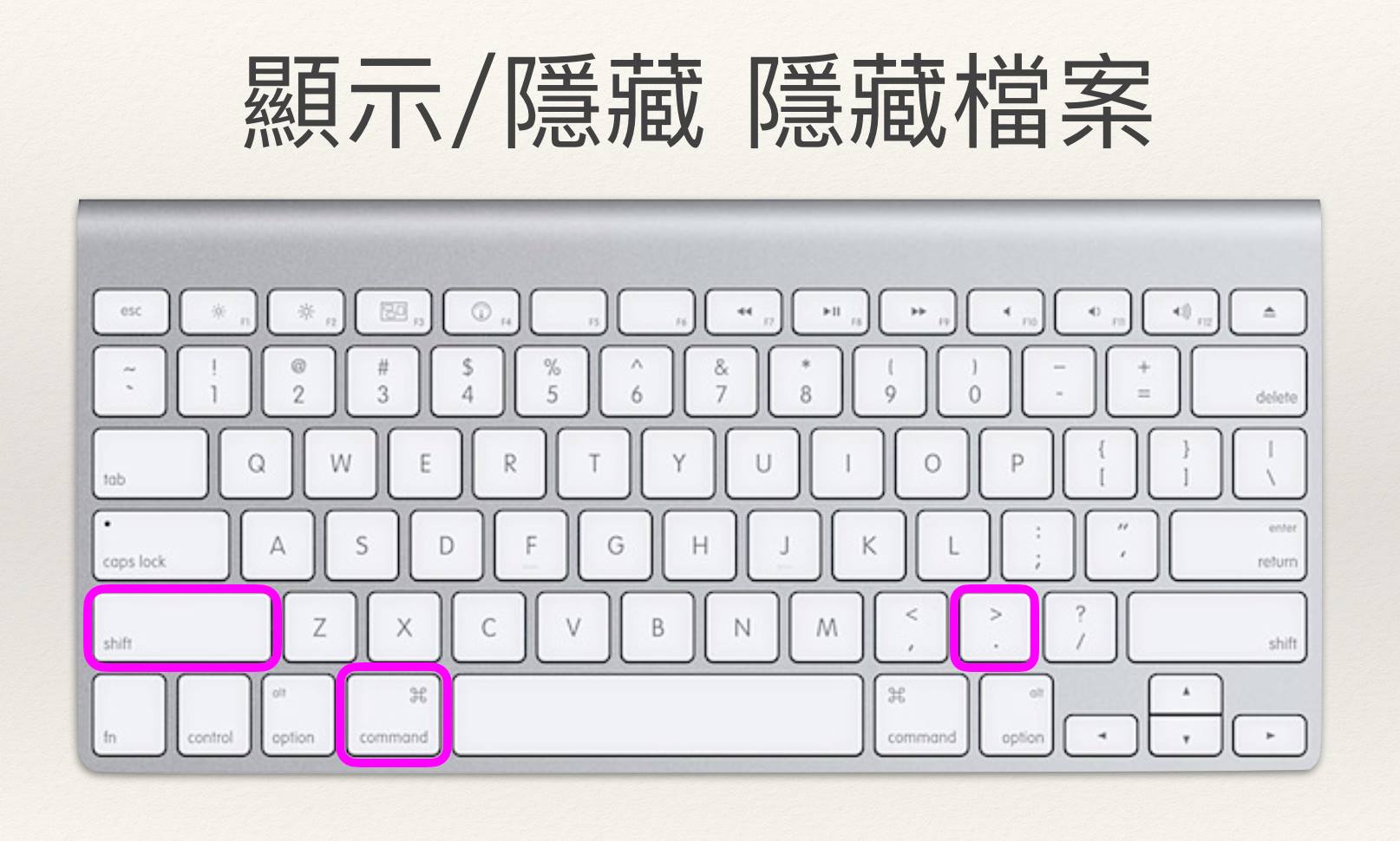
1.將隱藏檔案顯示出來

Shift + Command + .
這樣就可以顯示出隱藏的檔案囉,只要再按一次就可以重新隱藏。(參考MacUknow

Mac 隱藏檔案

2.備份.Node-Red 檔案夾的這三個檔案

(1)flows.json:這是原本流程頁簽內所有的流程的檔案,重安裝完成後匯入 Node-Red。
(2)package.json:這是原本已安裝節點的檔案,重安裝完成後匯入 Node-Red
(3)settings.js:這是Node_Red 的設定檔,存放著使用者帳號、密碼,重安裝完成後,將帳號、密碼相關資料複製到新的 settings.js 檔案中。

3.刪除.Node-Red 相關檔案夾
(1)刪除.node-Red 檔案夾
(2)刪除.node-gyd 檔案夾
(3)刪除.nmp 檔案夾

4.重新開機。

5.重新安裝Node-Red

使用大神安裝檔安裝,會把 Node-Red 與 Light Blue Bean節點一起安裝,但是我主要是安裝 Node-Red ,Light Blue Bean節點一起安裝,只要不用其實沒有什麼關係,或者安裝完成 Node-Red 後,再把它移除,以免與想要使用的節點衝到。

打開 安裝檔的目錄按滑鼠右鍵 > 服務 > 終端機視窗打開 ,

安裝完成後,Tensorfolw coco ssd 節點仍然啟動不起來,只好再次刪除重裝!!!

//////////////////////////////////////////////////////////////////////////////////////////////////////////////

第二次刪除重新安裝步驟:(參考資料來源2資料來源3

1.將隱藏檔案顯示出來

Shift + Command + .
這樣就可以顯示出隱藏的檔案囉,只要再按一次就可以重新隱藏。(參考MacUknow

2.備份.Node-Red 檔案夾的這三個檔案(先前已完成)

3.刪除 Node-Red 所有相關檔案夾
(1)刪除.node-Red 檔案夾
(2)刪除.node-gyd 檔案夾
(3)刪除.nmp 檔案夾
(4)再參考資料來源2資料來源3 手動刪除資料夾或檔案。
下面這些可能就是所有的檔案,但是作者不確定,但我刪除這些就沒問題了。

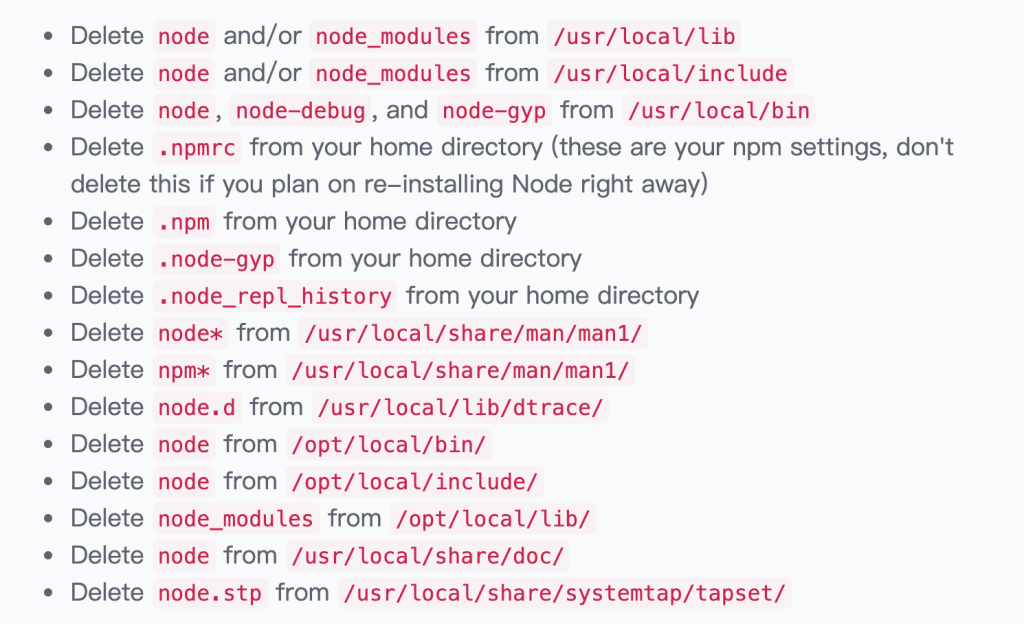
Uninstall Node-red 手動刪除檔案清單

這樣刪除後就算是手動乾淨移除 Node-red了!

Install Node-red

參考 資料來源4 進行安裝:

1.先安裝 Node.js :前往官方網站下載 安裝檔,請下載14.17.5 LTS 版本,或者是參考 這裡 使用 Command Line 手動安裝。

Node.js官方下載點
Node-red Command Line 安裝

2.安裝 Node-red

(1)打開終端機輸入下面程式碼

sudo npm install -g --unsafe-perm node-red

您必須在 sudo 的 npm 命令之前執行。 -g 表示將上傳到 npm 目錄,並且可用於所有 node.js。 –unsafe-perm 允許在出現錯誤時繼續安裝。

(2)安裝完成後,打開終端機輸入下面程式碼:

killall Finder

重新啟動 Finder

(3)啟動 Node-red:再次打開終端機輸入下面程式碼:

node-red
啟動 Node-red

(4)最後打開瀏覽器,輸入:http://127.0.0.1:1880

Done !

ESP32學習筆記-01:ESP32輔助板-01

資料來源:
1.IoT 物聯網應用:使用ESP32開發版與 Arduino C 程式語言
2.ESP32 x NBIoT 模組 i2c燈號測試程式

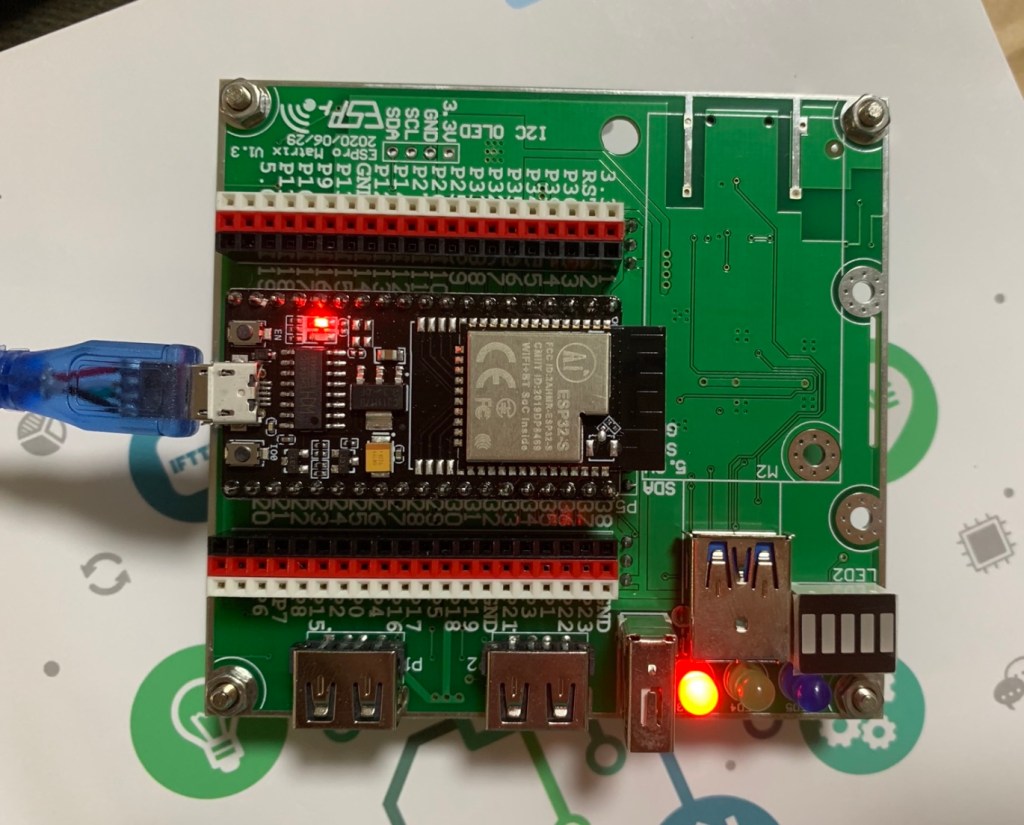
這是正式學習ESP32及Arduino C 語言的第一步,買了尤濬哲老師的書「IoT 物聯網應用:使用ESP32開發版與 Arduino C 程式語言」,以及ESP32、ESP32Cam、ESP32輔助板,入門IOT領域。

以下是尤老師的程式說明:
本範例說明如何使用本教學輔助板(ESP32 Matrix)的LED
教學板使用GPIO 26,27連接附加的I2C晶片
一、依照LED編號開啟或關閉:
MatrixInt(LED編號,開關),燈號(0~7),開關(1/0)

燈編號列表:
1.訊號指示燈:0~4
2.紅色LED:5
3.綠色LED:6
4.藍色LED:7

Example:
MatrixInt(1,1);//開1號燈
MatrixInt(5,0);//關5號燈


二、按信號強度開啟訊號指示燈:
MatrixLEDrssi(rssi);
MatrixLEDrssi(-60);//大於-65:5 顆Leds
MatrixLEDrssi(-70);//大於-75:4 顆Leds
MatrixLEDrssi(-80);//大於-85:3 顆Leds
MatrixLEDrssi(-90);//大於-95:2 顆Leds
MatrixLEDrssi(-100);//大於-105:1 顆Leds
//其餘均為0 Led

三、程式碼:(小弟有做一些小修改)

#include <Wire.h>
#include "MatrixInt.h"

void setup() {
  Serial.begin(115200);
  Wire.begin(26, 27);
}

void loop() {
  Serial.println("Turn on ALL LEDs by ID");
  for (int i = 0; i < 8; ++i)
  {
    MatrixInt(i, 1);//亮燈
    Serial.println("LED " +  String(i) + " 亮燈");//在序列監視埠輸出顯示「LED 號碼 亮燈」
    delay(1000);
    MatrixInt(i, 0);//關燈    
  }
  Serial.println("Turn on RSSI LED by RSSI value");

  for (int i = -50; i > -120; i=i-1)
  {
    Serial.println("RSSI = " +  String(i));
    MatrixLEDrssi(i);
    delay(300);
  }
  delay(1000);
}